# Jira Automation | Expand its power with AWS SSM
> You will learn to use AWS SSM to expand the power of Jira with its automation feature and inspire you to design automation rules for your DevOps solution.
Vladimir Romanov · 2024-02-21 · https://kerno.io/blog/jira-automation-expand-its-power-with-aws-ssm/
## Introduction
Jira is an agile project management tool built for tracking issues and projects in progress, which is widely used in the IT industry. You can simply treat it as your team's platform for coding, collaboration, and release stages. As a DevOps Engineer, it is undeniably an important tool to automate and integrate the software development process and other IT teams like infrastructure, operation, and quality assurance teams.
In this article, we will learn how to use AWS SSM to expand the power of Jira with its automation feature and inspire you to design automation rules for your DevOps solution.
## Jira Automation
Jira automation is a powerful feature that allows you to customize rules to streamline and enhance your workflows with **if-this-then-that-rules** based on events on Jira. Tons of behaviors you have done on Jira could become a trigger for others. It is also integrated with popular third-party tools or platforms like AWS SSM Document, Azure Runbook, GitHub, GitLab, Bitbucket, and Slack.
Some simple examples of using Jira automation,
- Create a feature branch on a GitHub repository for a newly created Jira issue.
- Inform other teammates on a Slack channel when an issue has been marked completed.
- Trigger an AWS SSM Document when an issue has been transitioned to the next stage.
- Assign an issue to a tester while passing to the QA stage.
The above examples showed how automation makes Jira a central hub of your IT department, and there are more and more things it can do for you.
## AWS System Manager (AWS SSM)
AWS SSM is a service that manages and automates operational tasks across your AWS resources. It simplifies the maintenance of infrastructure in a safer and more centralized way. It is divided into five units which are Operations Management, Application Management, Change Management, Node Management, and Shared Resources. These units cover a lot of common operational tasks.
From these five units, there are some sample use cases below,
- Using Parameter Store in Application Management to centralize the storage of data, secrets, or other types of data.
- Run Command in Node Management enables users to remotely execute commands on your EC2 instances or on-premises servers without manual interventions.
- Define and automate complex tasks across AWS resources using Automation in Change Management
The power of AWS SSM is not limited to the above use cases. It has become an important tool for DevOps or Site Reliability Engineers on daily operation tasks like patching, resource management, and inventory.
## Prerequisites
What you will need to follow along with this article:
- A Jira account with a project configured.
- An AWS account with the permission on IAM role, SSM and Lambda
- You need to be familiar with using the AWS Console
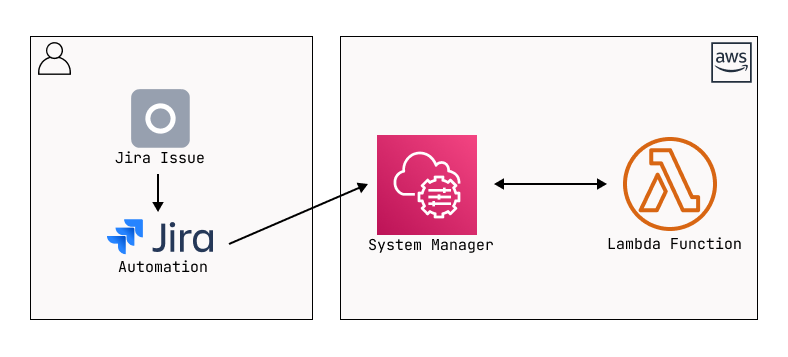
From the items above, we can create the workflow that triggers a Jira automation rule, then run an AWS SSM Document that invokes a Lambda Function and returns a “Hello World!” message.
Figure 1 - Jira Automation AWS SSM | General Architecture Diagram
## Preparation on AWS
In this article, we will use the AWS Console for all resource creation and configuration. Therefore, please log in to your AWS Console before you start. We will use the \`us-east-1\` region as an example.
Link to console: [https://us-east-1.console.aws.amazon.com](https://us-east-1.console.aws.amazon.com)
### IAM Role
Jira automation uses IAM-based integration for connecting to any non-SNS resources. It means except for connecting to AWS SNS resources, we will need a separate IAM Role.
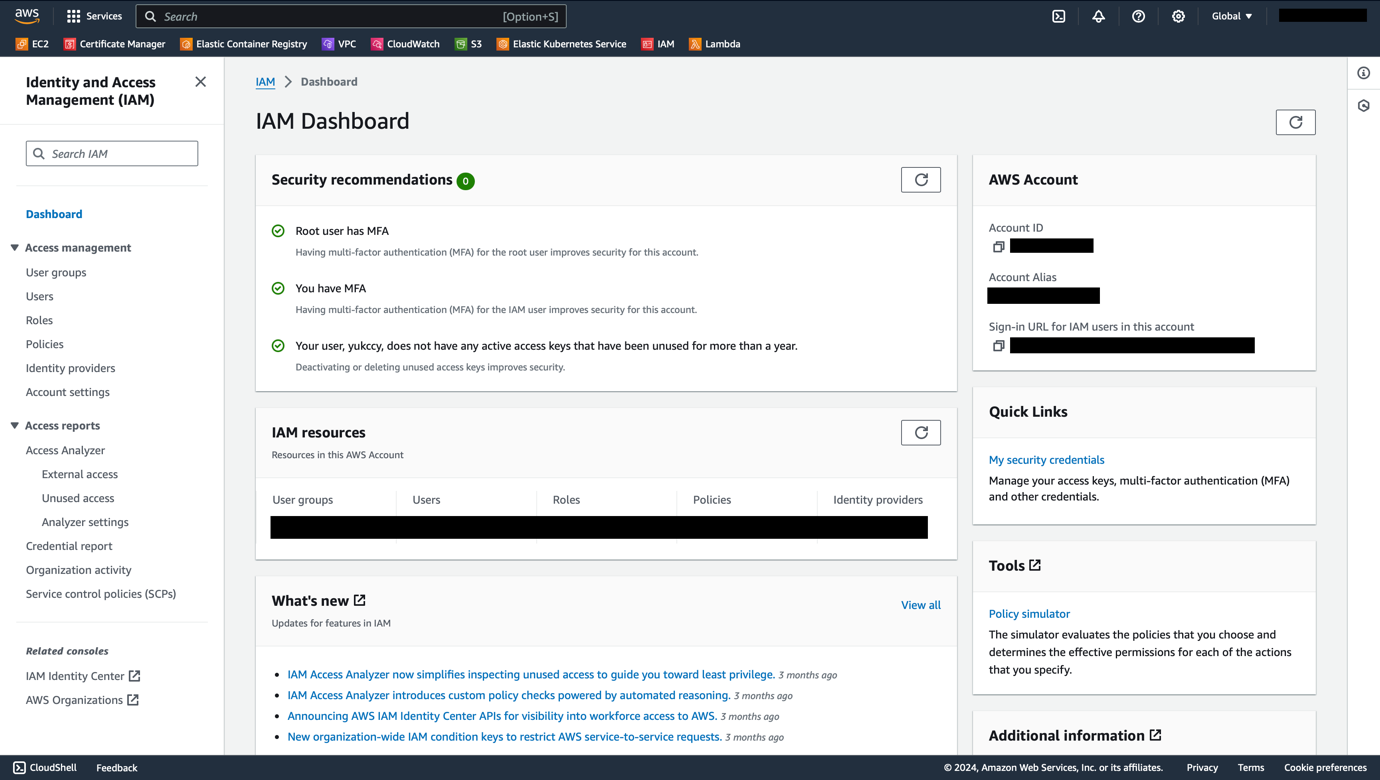
1. Go to the IAM Dashboard.
Figure 2 - Jira Automation AWS SSM | AWS IAM Dashboard
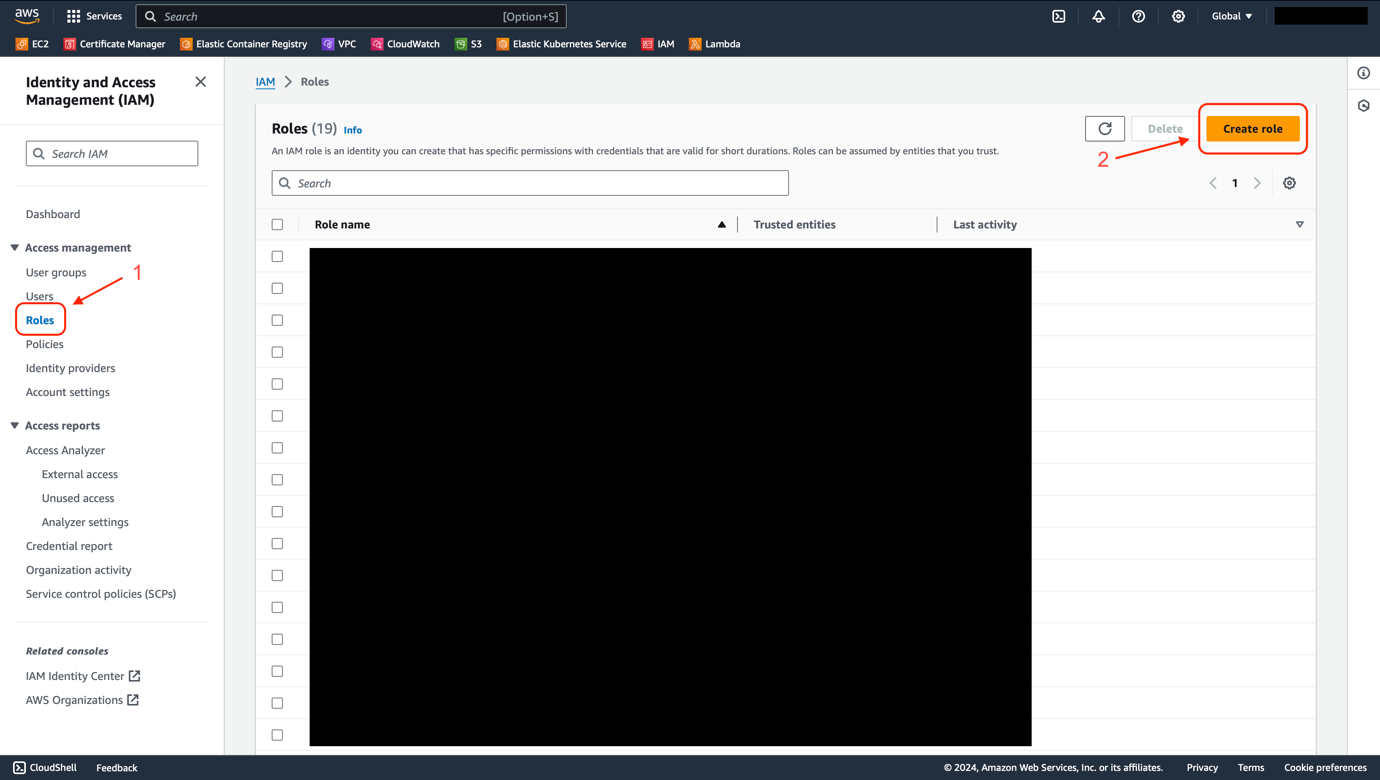
2. Choose **Roles** from the navigation menu, then click the **Create Role** button.
Figure 3 - Jira Automation AWS SSM | AWS IAM Roles
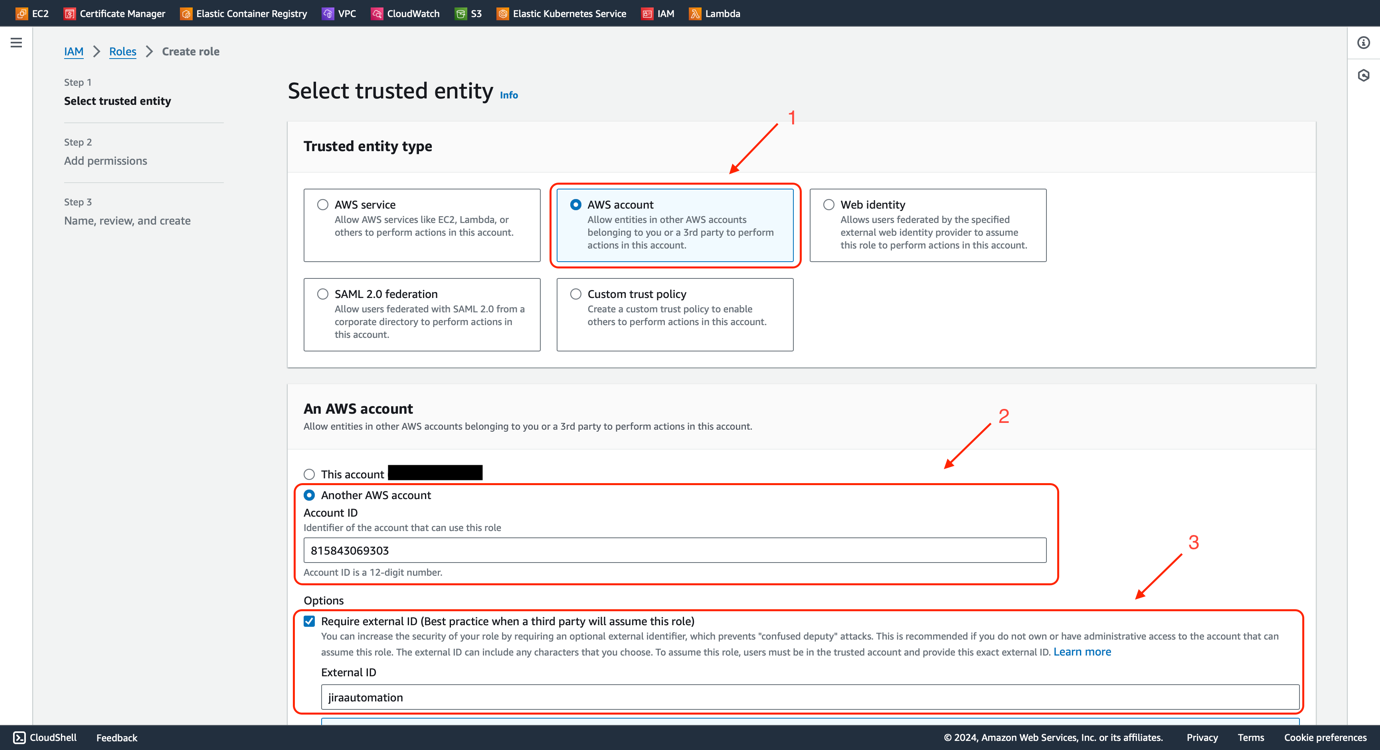
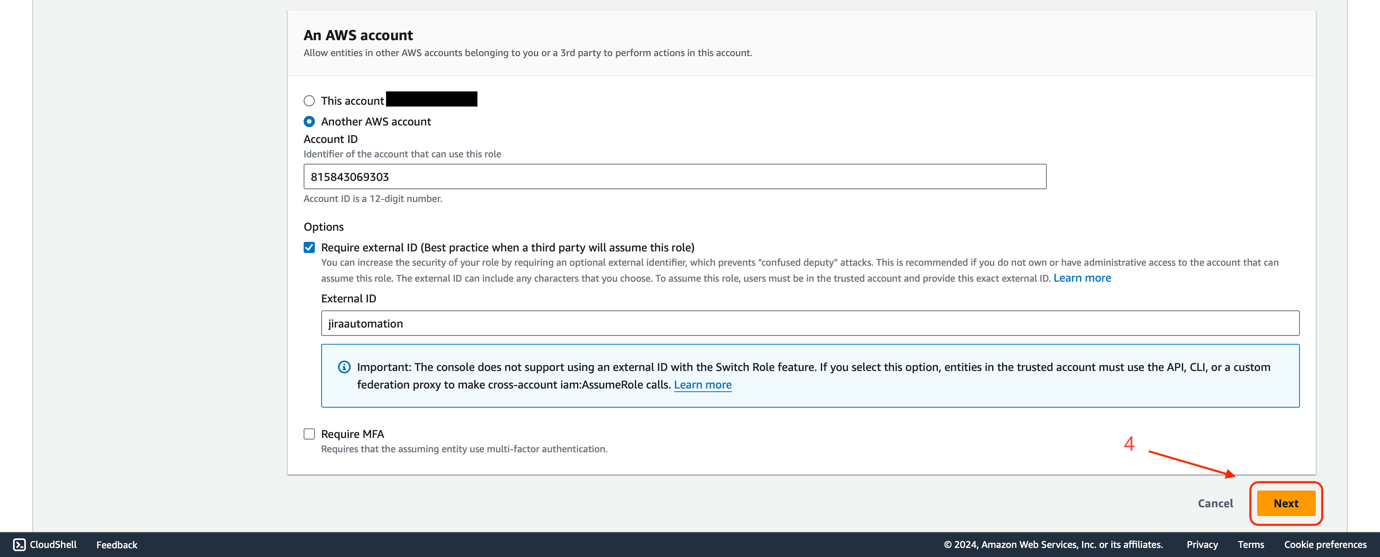
3. Choose **AWS Account** as the Trusted Entity Type.
4. Select **Another AWS account** and enter the Atlassian Automation AWS account ID: **815843069303**.
5. Select **Require external ID** and enter a random ID which we will use while setting up AWS connection on Jira. We use **jiraautomation** as an example.
6. Click **Next**.
Figure 4 - Jira Automation AWS SSM | New IAM Role SpecificationFigure 5 - Jira Automation AWS SSM | New IAM Role Specification
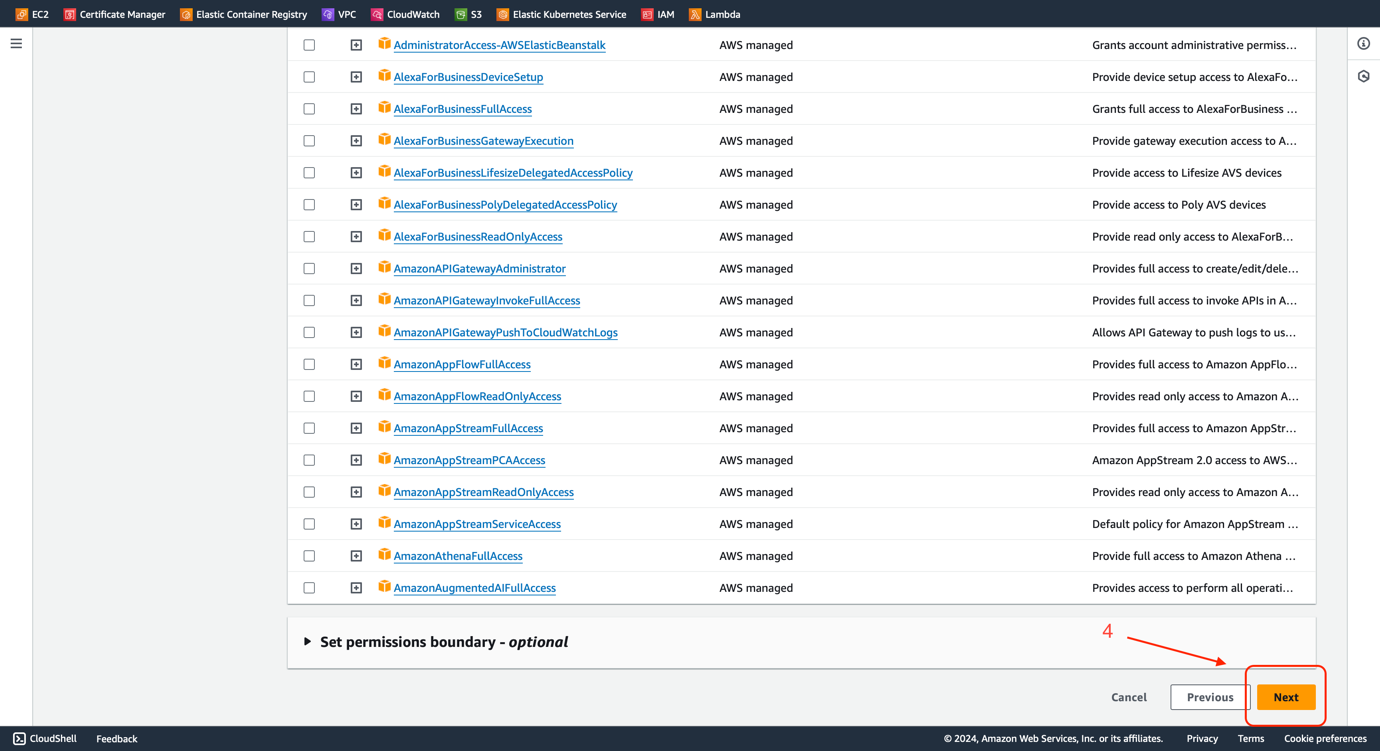
7. Click **Next** without selecting any permission as we will create inline policies later.
Figure 6 - Jira Automation AWS SSM | New IAM Role Permissions
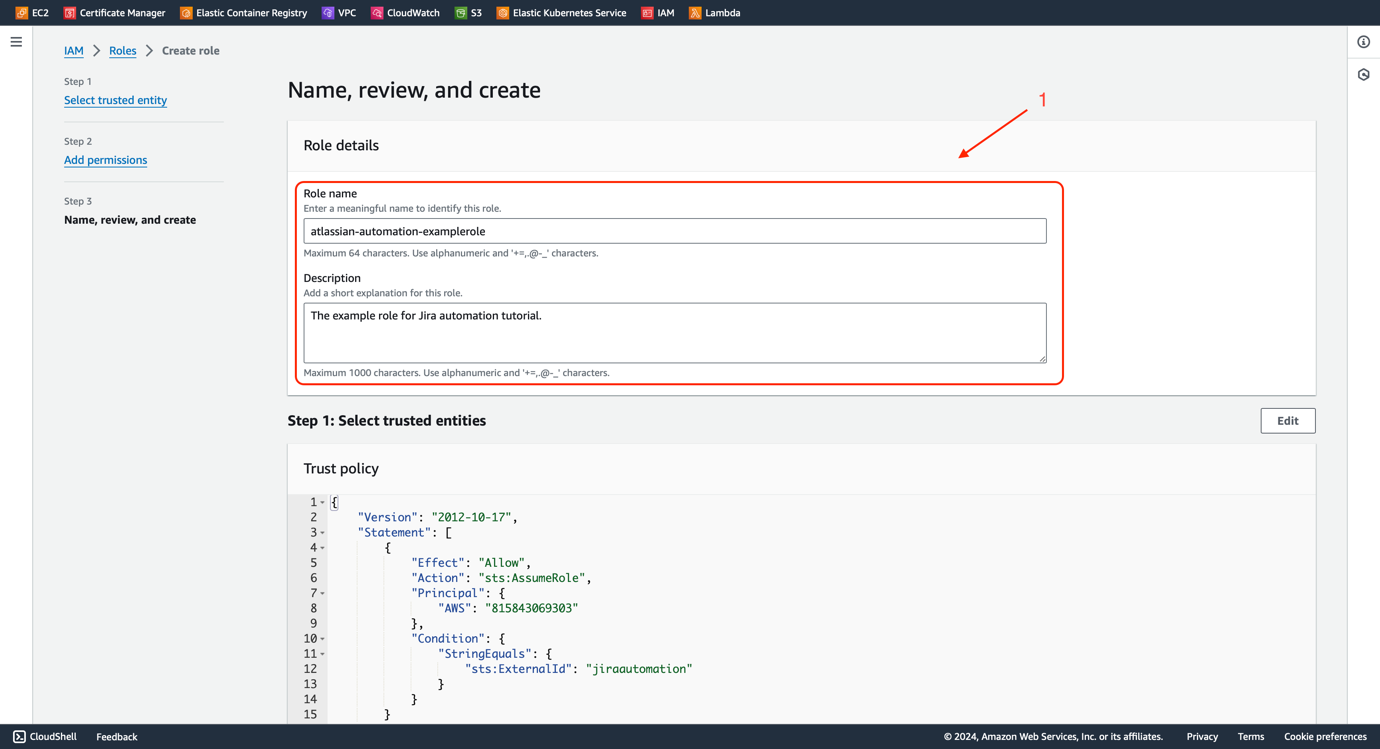
8. Enter a **Role name** and **Description**. The role name must begin with \`atlassian-automation-\`.
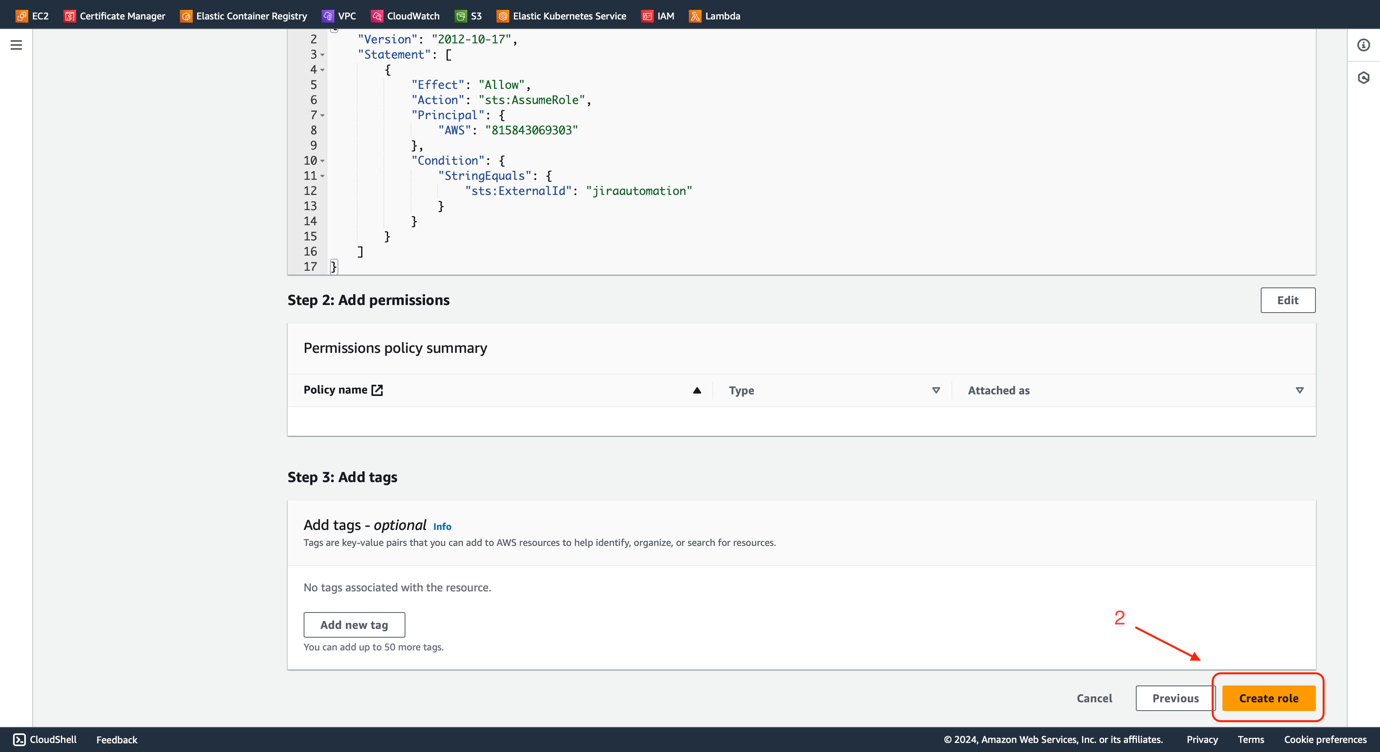
9. Review your configuration, then click **Create role**.
Figure 7 - Jira Automation AWS SSM | Role DetailsFigure 8 - Jira Automation AWS SSM | Role Details
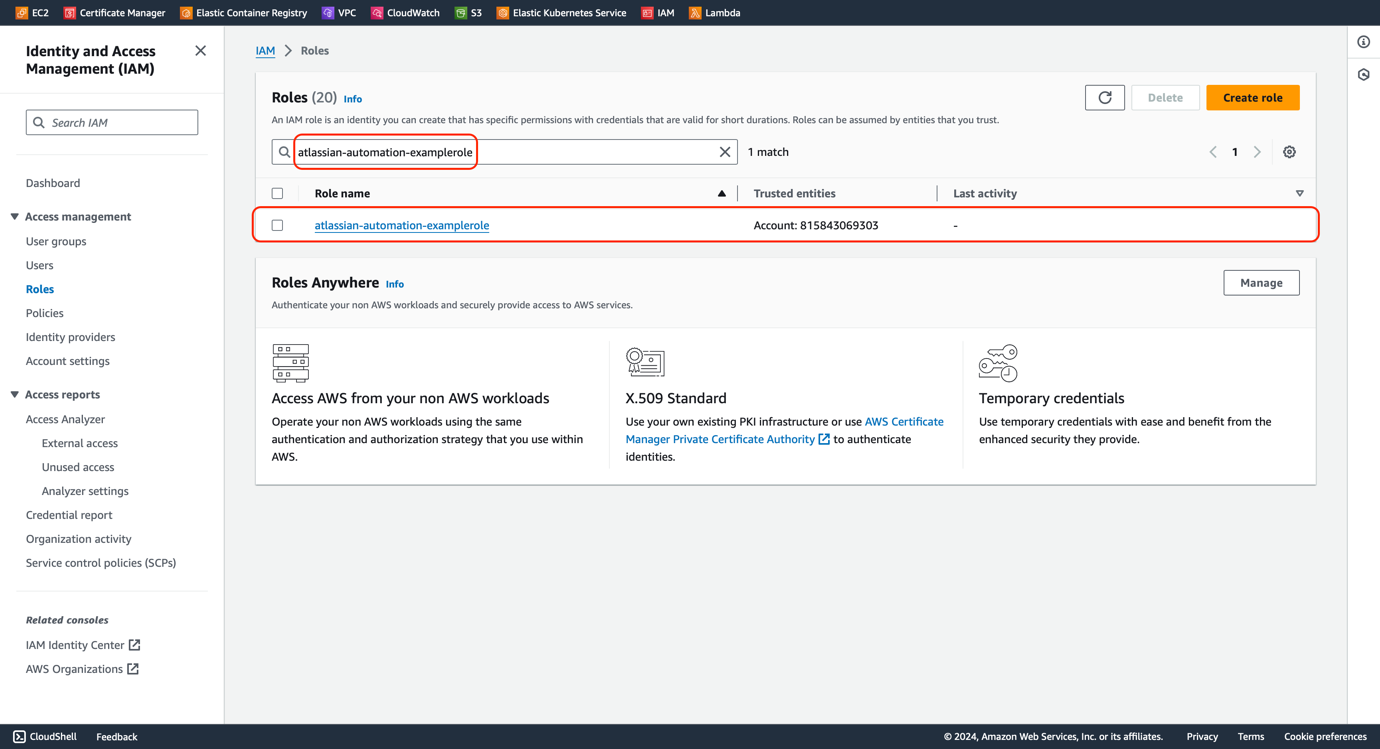
10. Go back to the Role dashboard and search for the newly created role.
Figure 9 - Jira Automation AWS SSM | New IAM Role
11. Select the role from the search result.
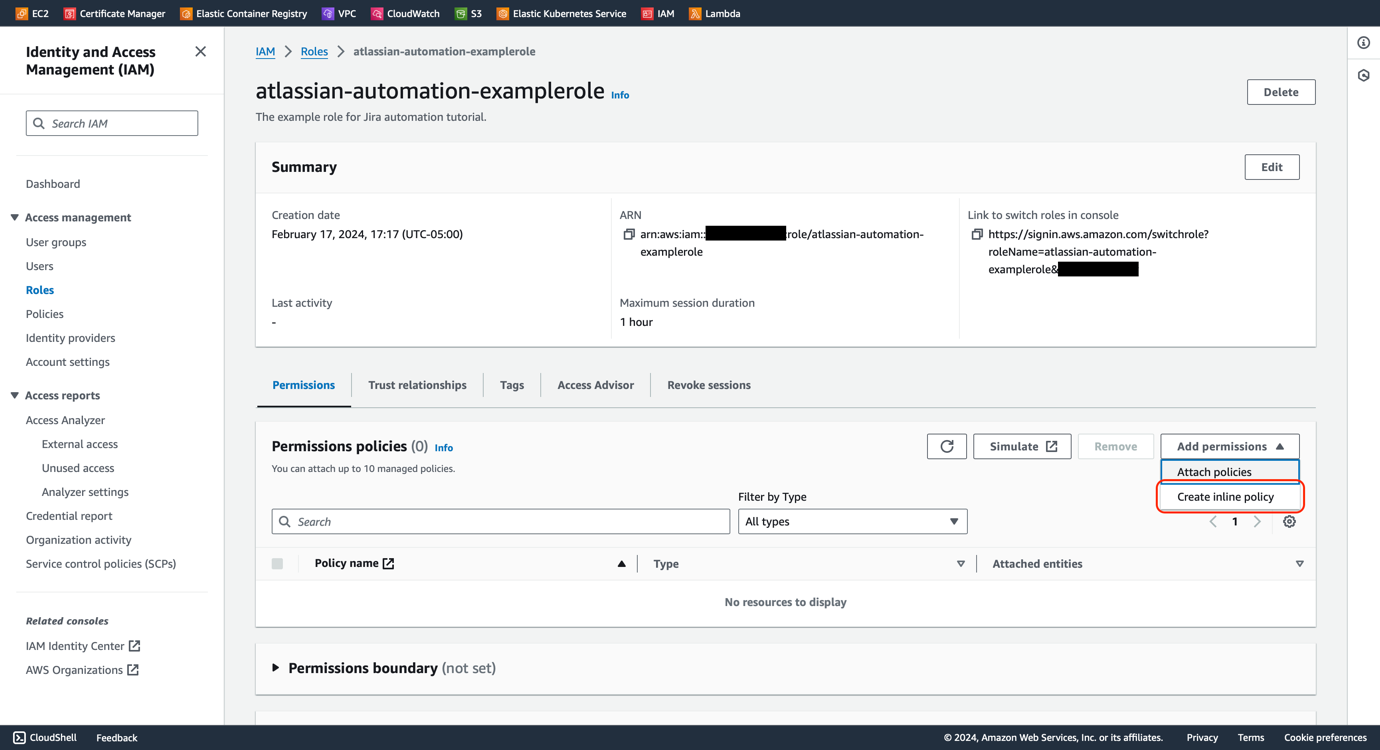
12. Select **Create inline policy** from the pull-down menu **Add permissions**.
Figure 10 - Jira Automation AWS SSM | IAM Role Inline Policy Creation
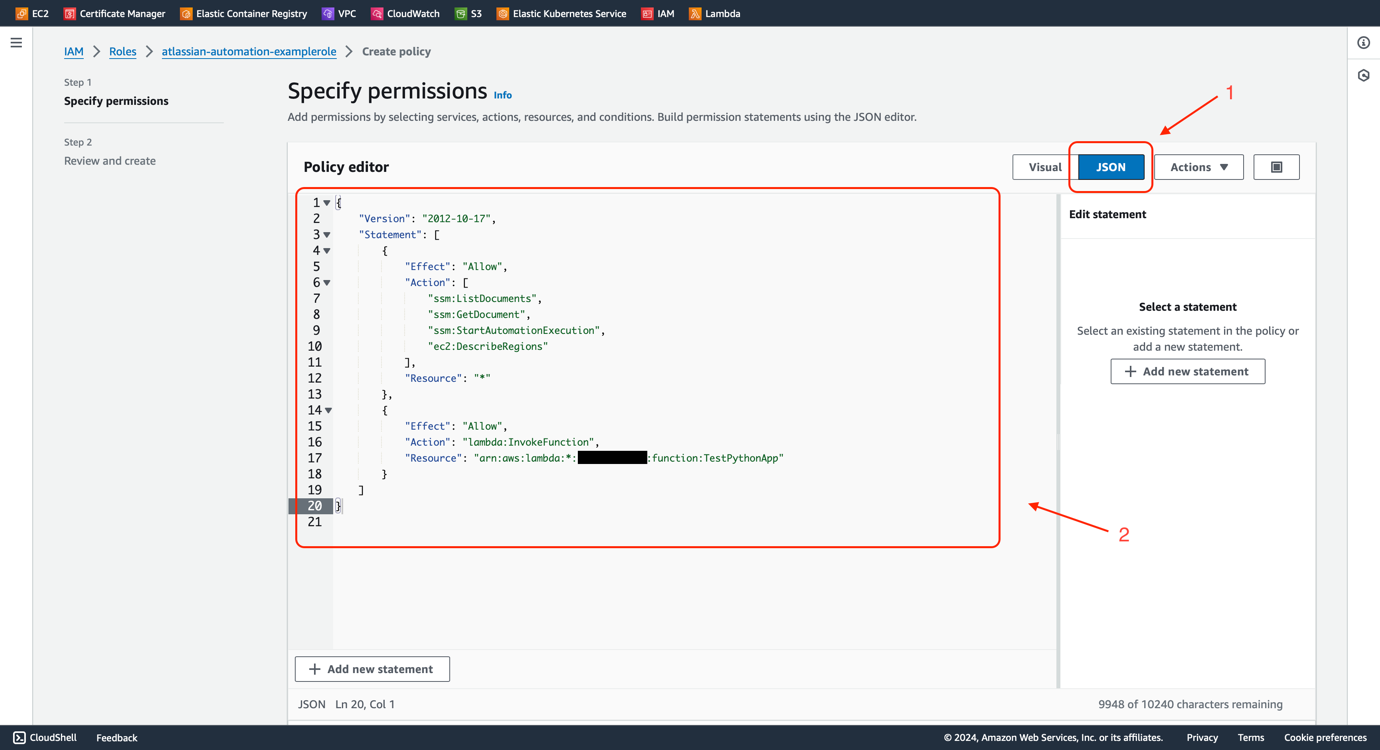
13. Select **JSON** as the display mode of the policy editor.
14. Write the JSON policy with the following permissions.
- List SSM Documents.
- Get SSM Document.
- Start an Automation execution.
- List all available AWS regions.
- Invoke a Lambda Function with a specific name.
15. Or you can use the following example by replacing some fields with your value.
- Replace **** with your AWS account ID.
- Replace **** with the name of the Lambda Function we will create soon. We will use **TestPythonApp**.
```
{
"Version": "2012-10-17",
"Statement": [
{
"Effect": "Allow",
"Action: [
"ssm:ListDocuments",
"ssm:GetDocument",
"ssm:StartAutomationExecution",
"ec2:DescribeRegions"
],
"Resource": "*"
},
{
"Effect": "Allow",
"Action": "lambda:InvokeFunction",
"Resource": "arn:aws:lambda:*::function:"
}
]
}
```
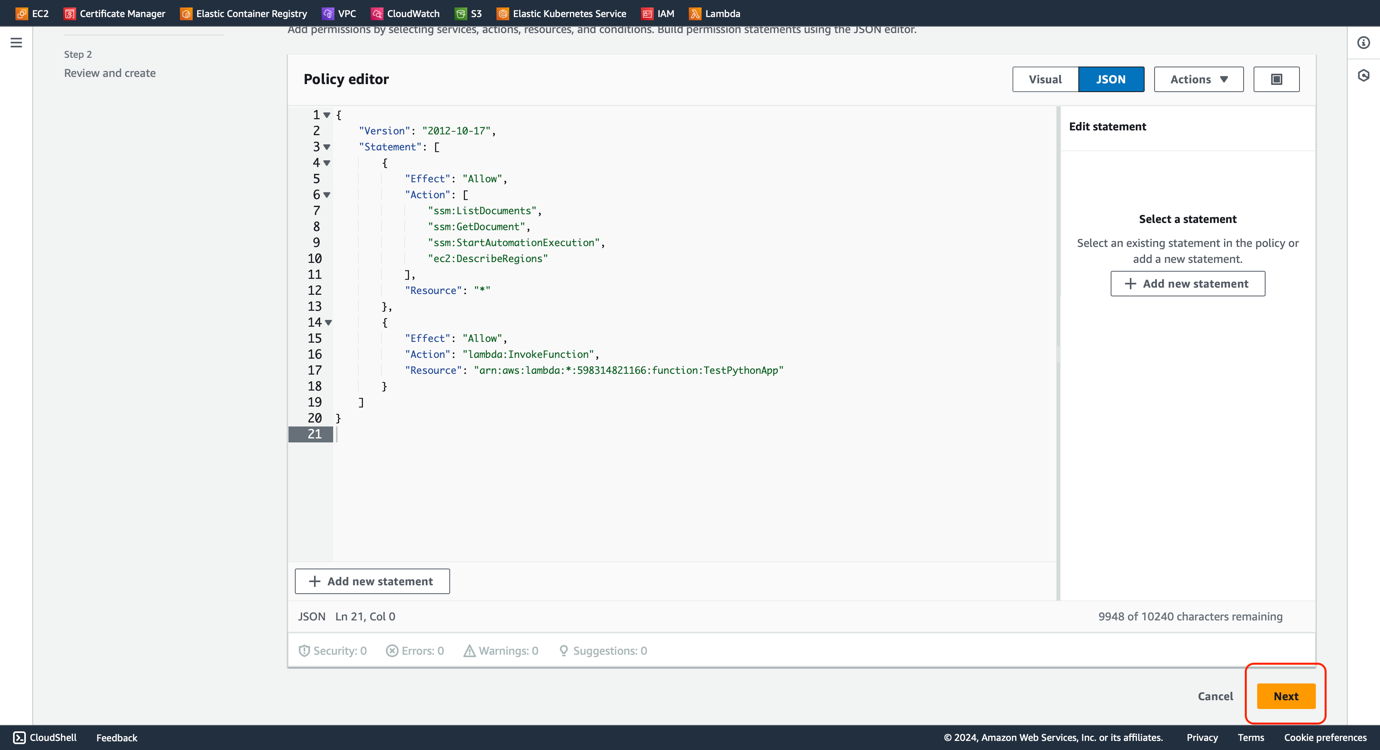
16. Click **Next**.
Figure 11 - Jira Automation AWS SSM | IAM Role Permissions in JSONFigure 12 - Jira Automation AWS SSM | IAM Role Permissions in JSON
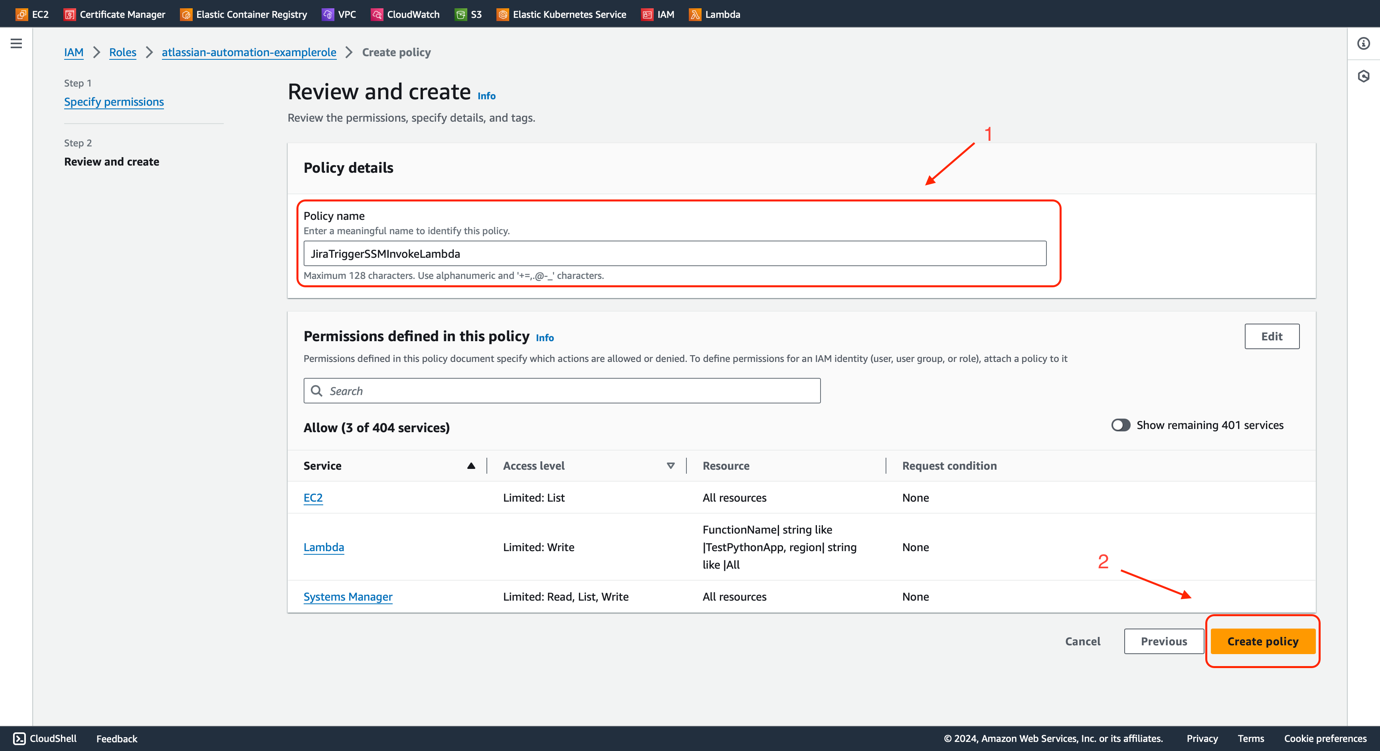
17. Enter a policy name.
18. Review the permissions and click **Create policy**.
Figure 13 - Jira Automation AWS SSM | IAM Role Policy
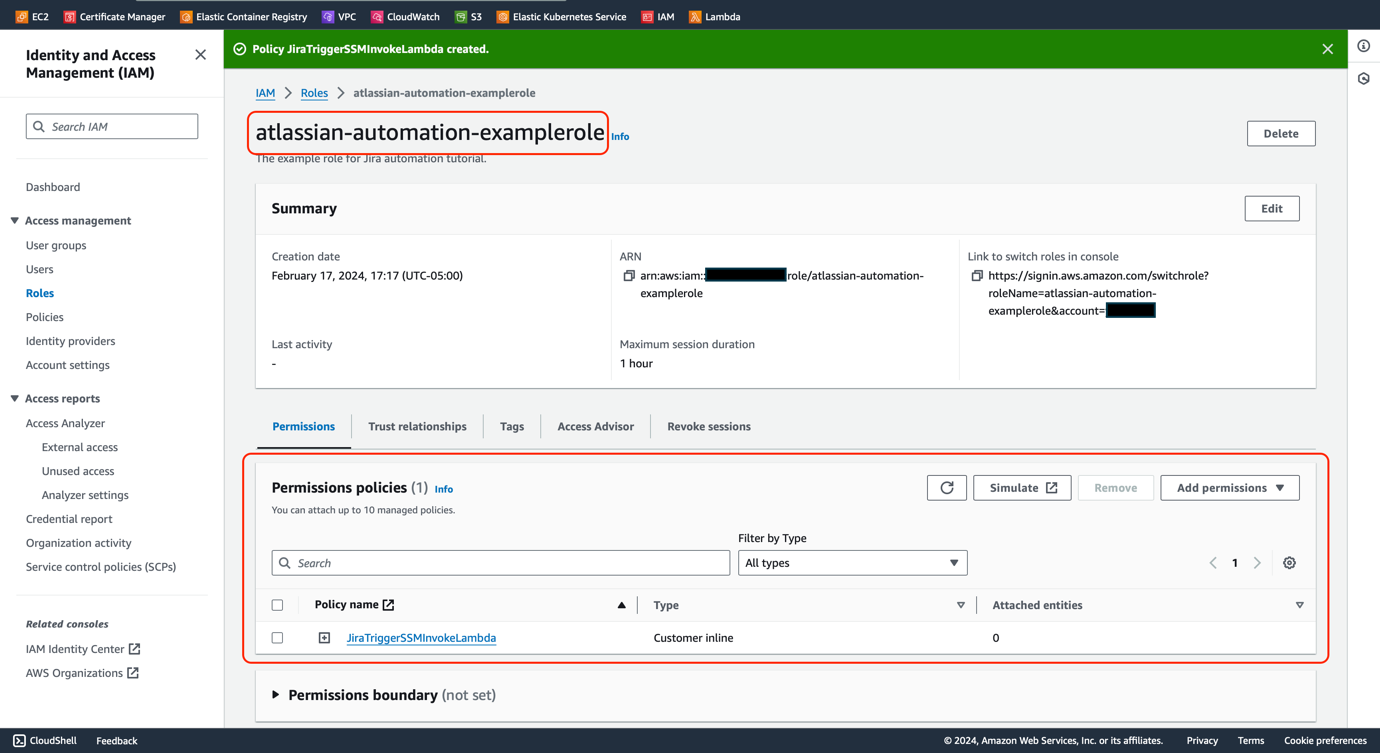
Now, you have an IAM role with the necessary permissions for Jira automation.
Figure 14 - Jira Automation AWS SSM | IAM Role Policy
### Lambda
In this example, we will create a simple Lambda Function. When our Jira automation rule triggers the SSM Document, it will invoke this Lambda Function.
Lambda Function is commonly used in DevOps solutions with different use cases because of its serverless and scalable feature. As it supports popular programming languages like Python, Java, Node.js, Ruby, and .NET, it extends the possibilities of integrating different platforms with Jira automation rules. In later sections, you will see some examples of how it helps DevOps solutions.
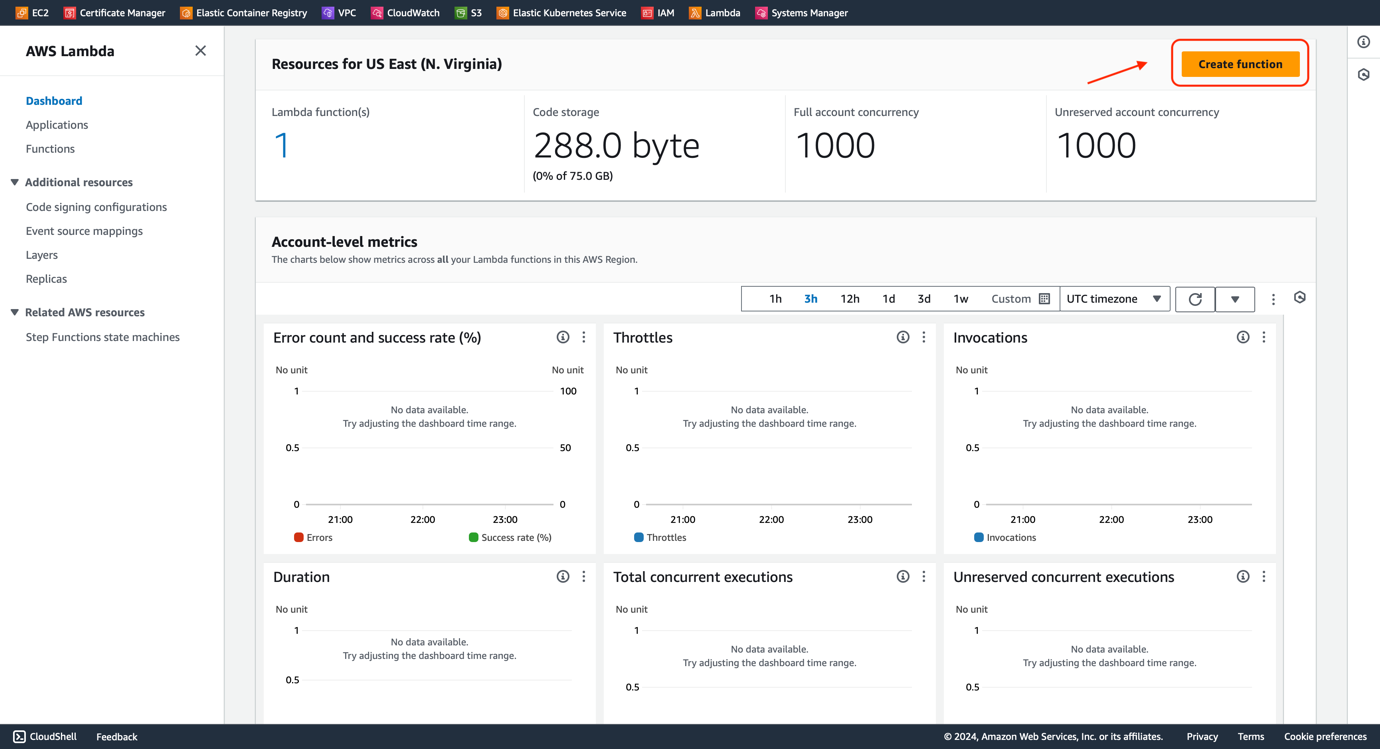
1. Go to the Lambda Dashboard.
2. Click the **Create function** button.
Figure 15 - Jira Automation AWS SSM | AWS Lambda Function
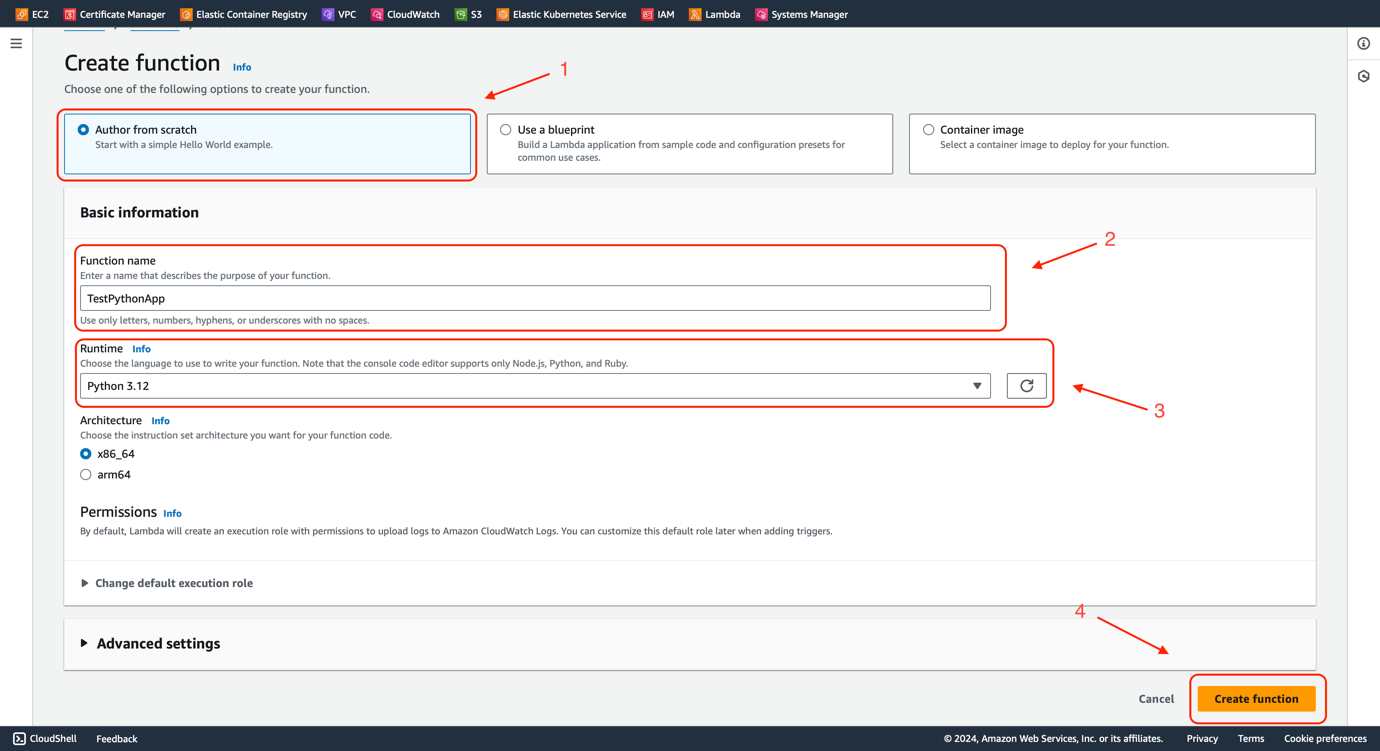
3. Select the **Author from scratch**.
4. Enter the **Function name**. You should use the same name “**TestPythonApp**” while creating the inline policy of the IAM Role created in the previous section.
5. Select **Python 3.12** for Runtime. The version number could be different as AWS continuously updates it to the latest Python version.
6. Leave the remaining fields to default. Click the **Create function** button.
Figure 16 - Jira Automation AWS SSM | Deploying an AWS Lambda Function
7. You now have a Lambda function.
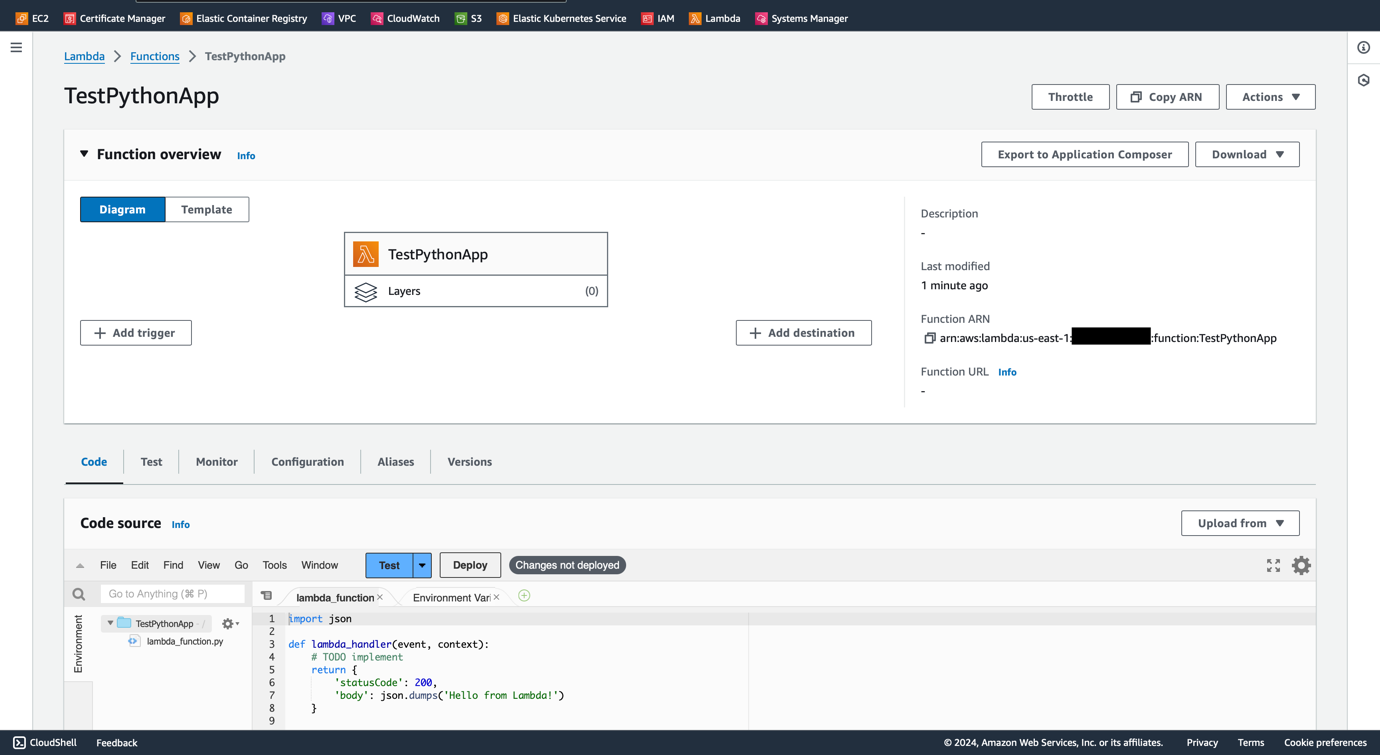
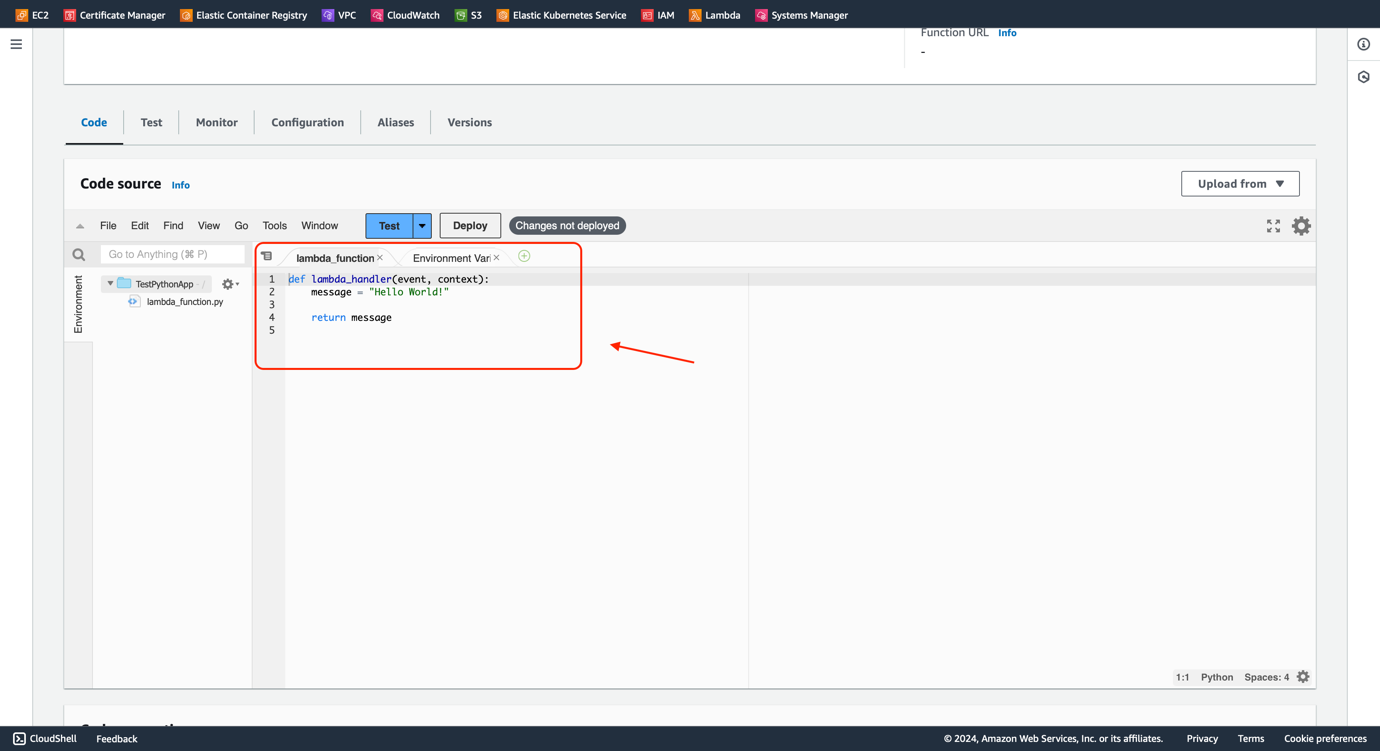
8. Replace the default Code Source with the following lines,
```
def lambda_handler(event, context):
message = "Hello World!"
return message
```
Figure 17 - Jira Automation AWS SSM | Python AppFigure 18 - Jira Automation AWS SSM | Python App
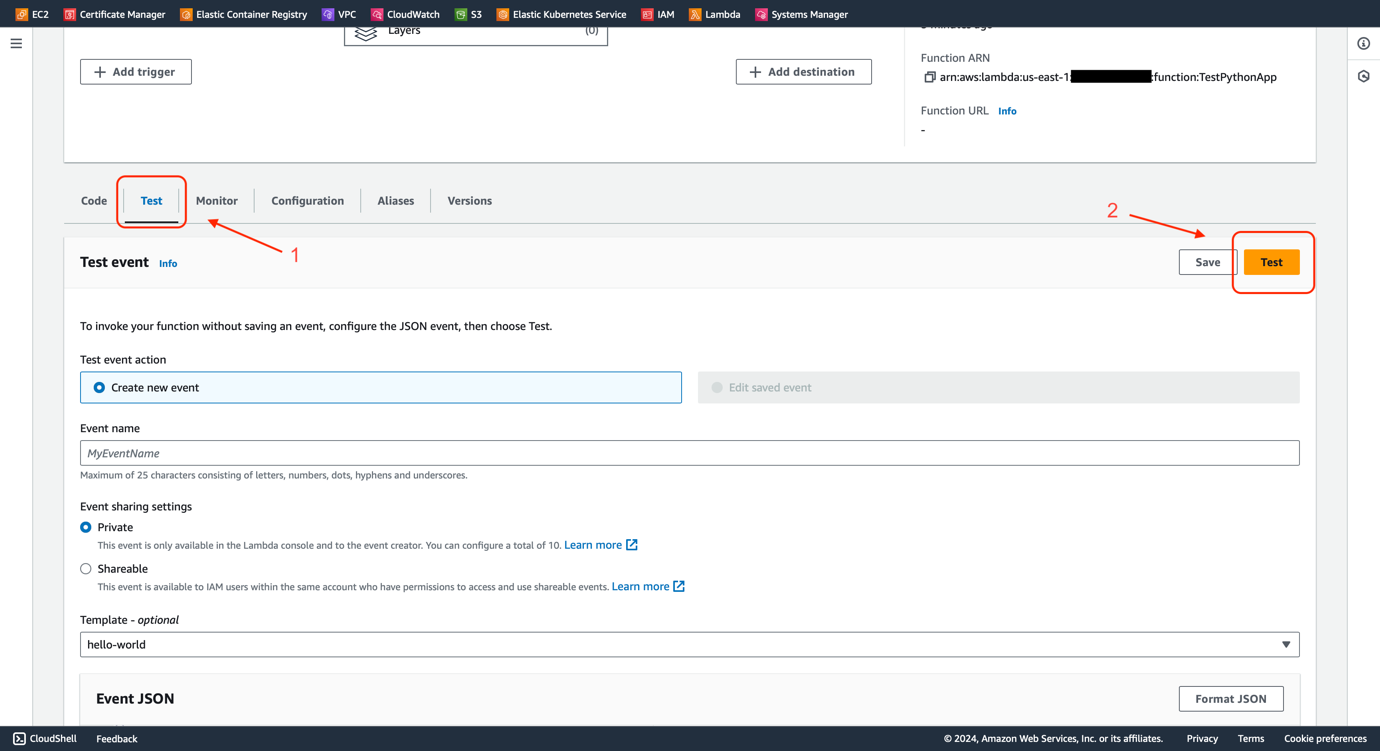
9. Select **Test** from the tab.
10. Click the **Test** button.
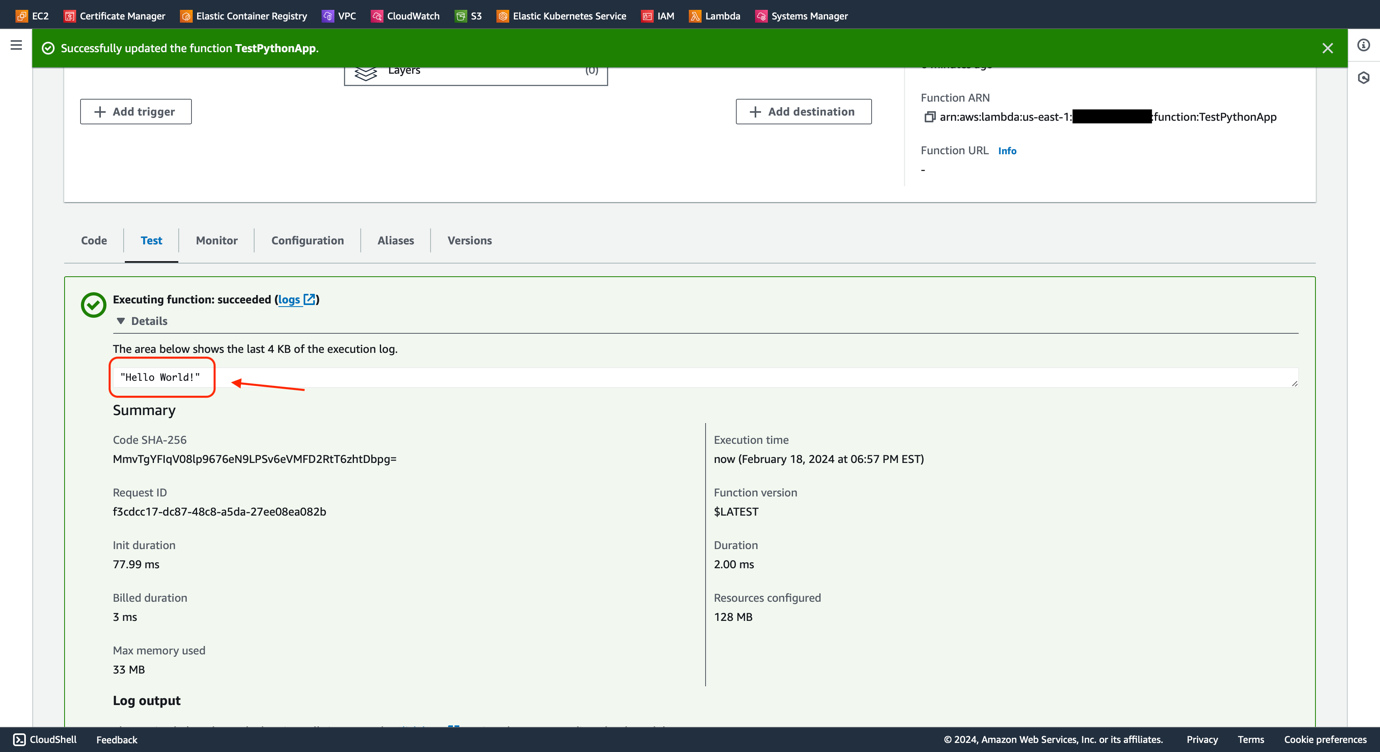
11. The function should be executed successfully with a “Hello World!” as the return.
Figure 19 - Jira Automation AWS SSM | Testing the FunctionFigure 20 - Jira Automation AWS SSM | Successful Test of Python Application
Now you have a simple Lambda Function ready to invoke.
### SSM Document
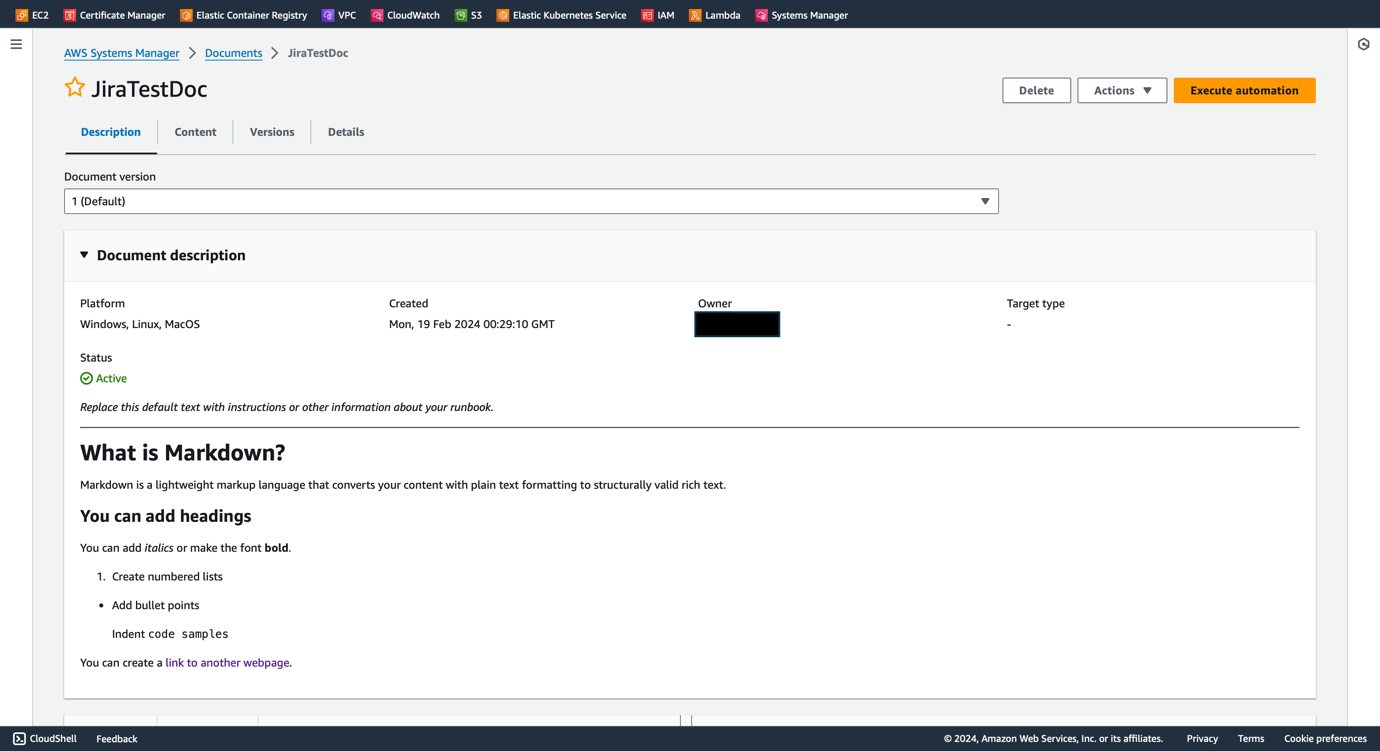
Finally, we need an SSM Automation Document which will be specified while setting up the Jira automation rule. When this document is being executed, it will invoke the Lambda Function we created in the previous section.
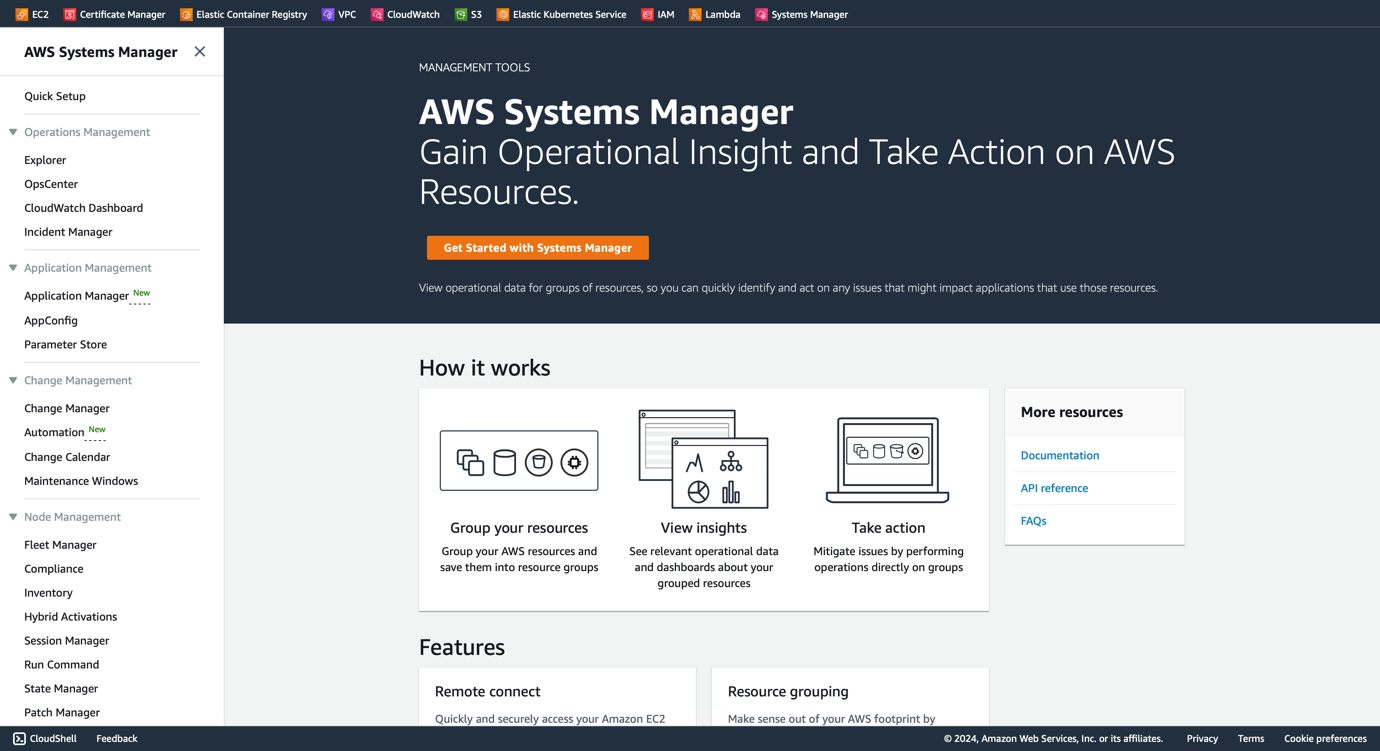
1. Go to the System Manager Dashboard
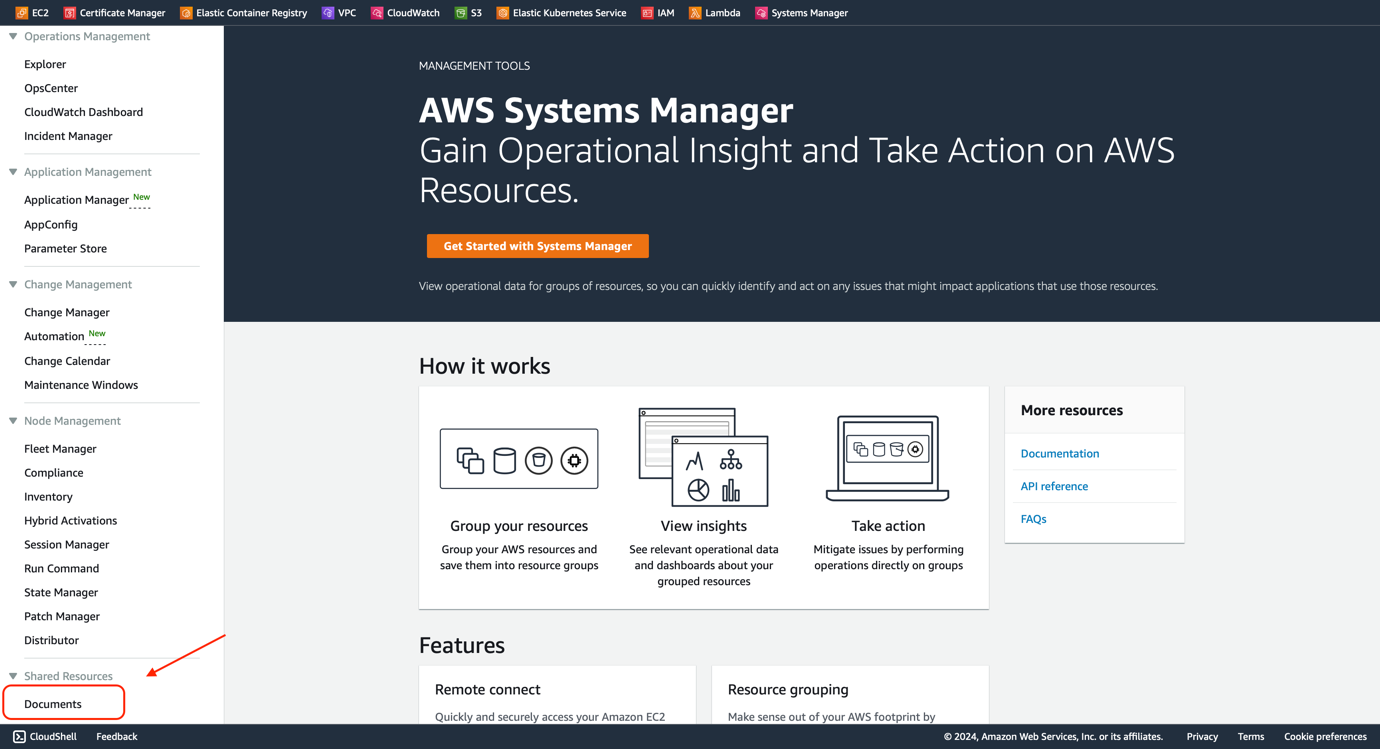
2. Choose **Documents** from Shared Resources in the navigation menu.
Figure 21 - Jira Automation AWS SSM | AWS Systems ManagerFigure 22 - Jira Automation AWS SSM | AWS Systems Manager - Documents
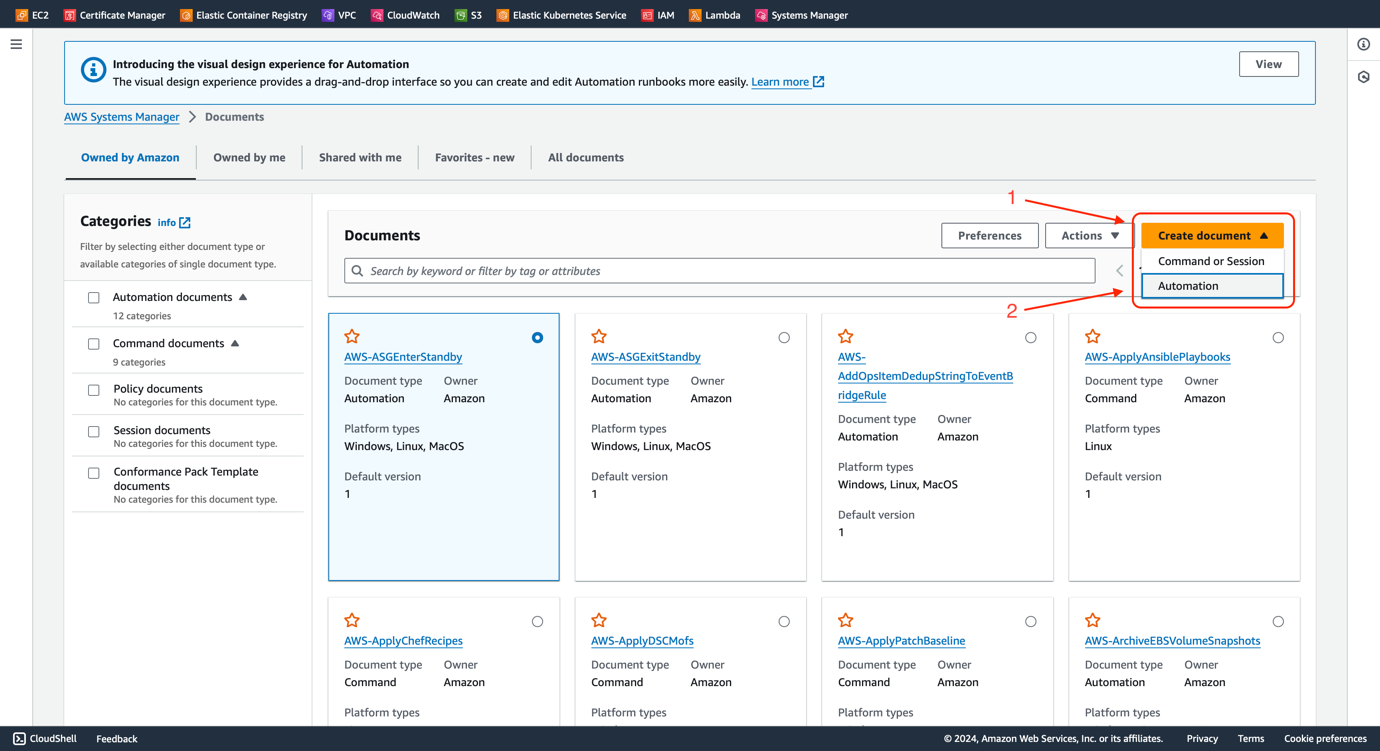
3. Click **Create document**, then choose **Automation** from the pull-down menu.
Figure 23 - Jira Automation AWS SSM | AWS Systems Manager - Automation
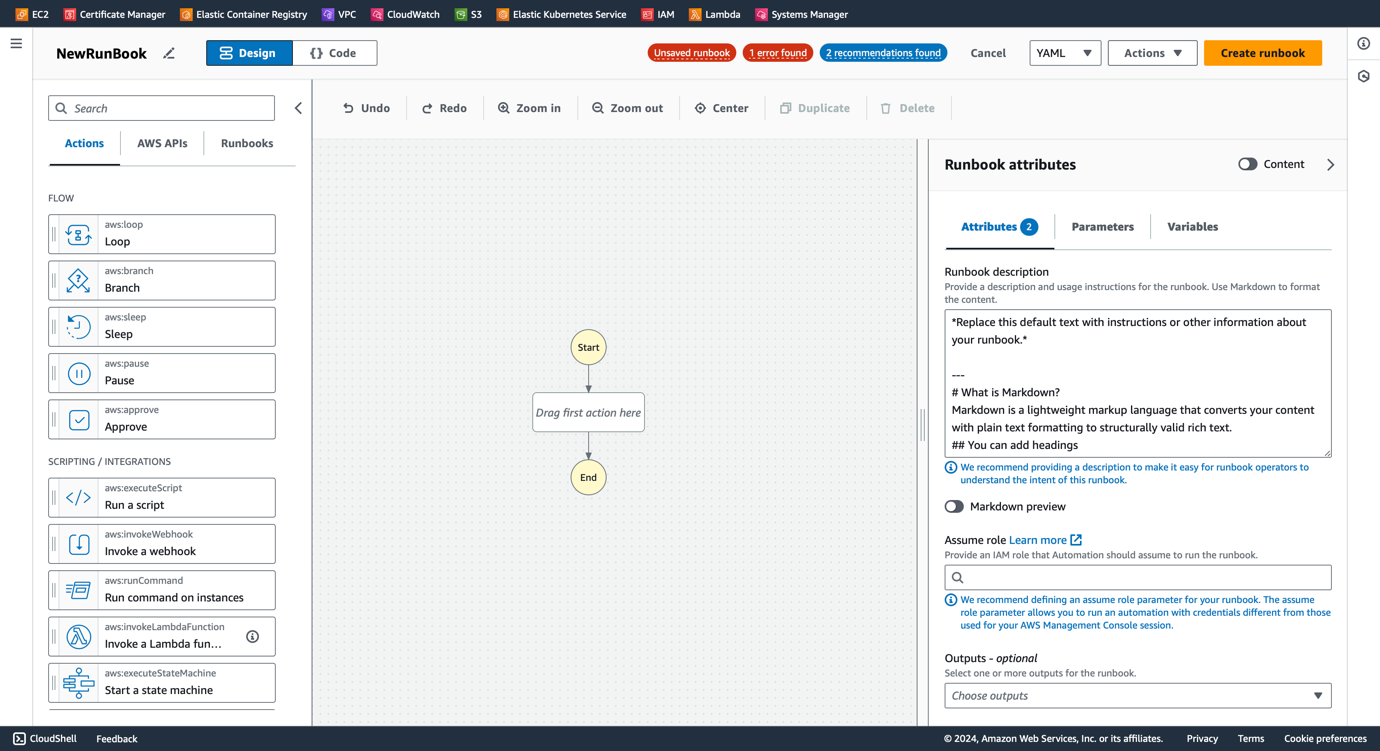
4. You will see a design panel.
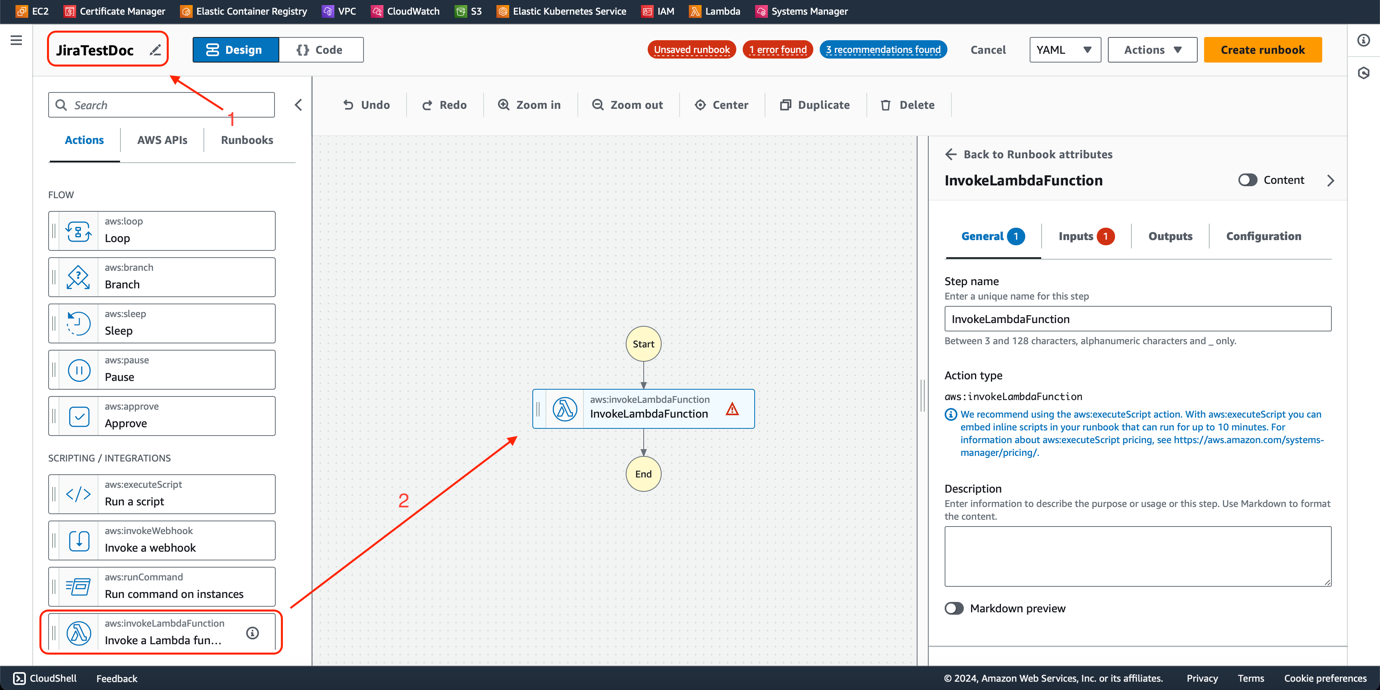
5. Update the document name. We use **JiraTestDoc** as an example.
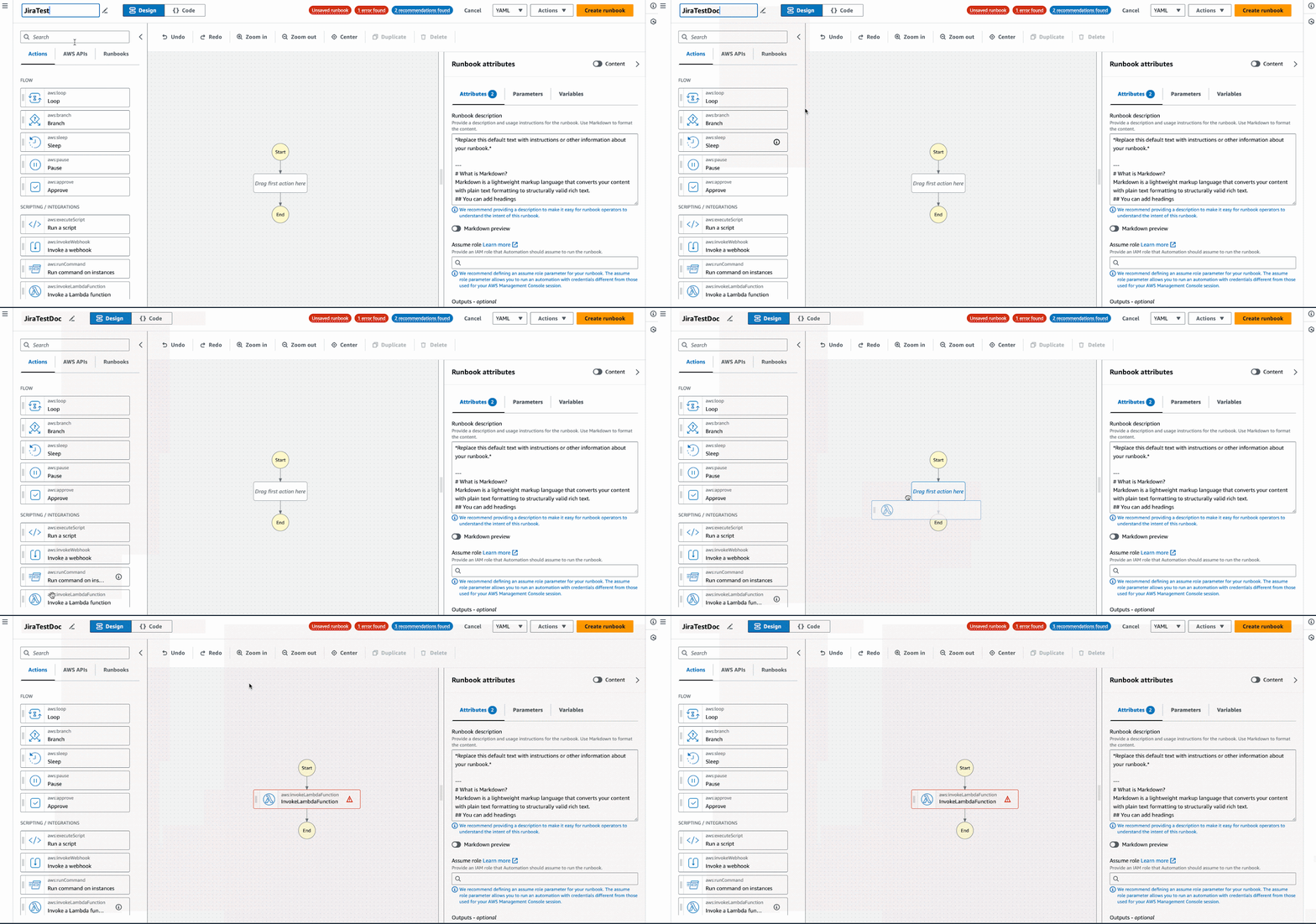
6. Pull **Invoke a Lambda Function** from the Actions menu to the design panel.
Figure 24 - Jira Automation AWS SSM | AWS Systems Manager - AutomationFigure 25 - Jira Automation AWS SSM | AWS Systems Manager - Lambda Function AutomationFigure 26 - Jira Automation AWS SSM | AWS Systems Manager - Lambda Function Automation
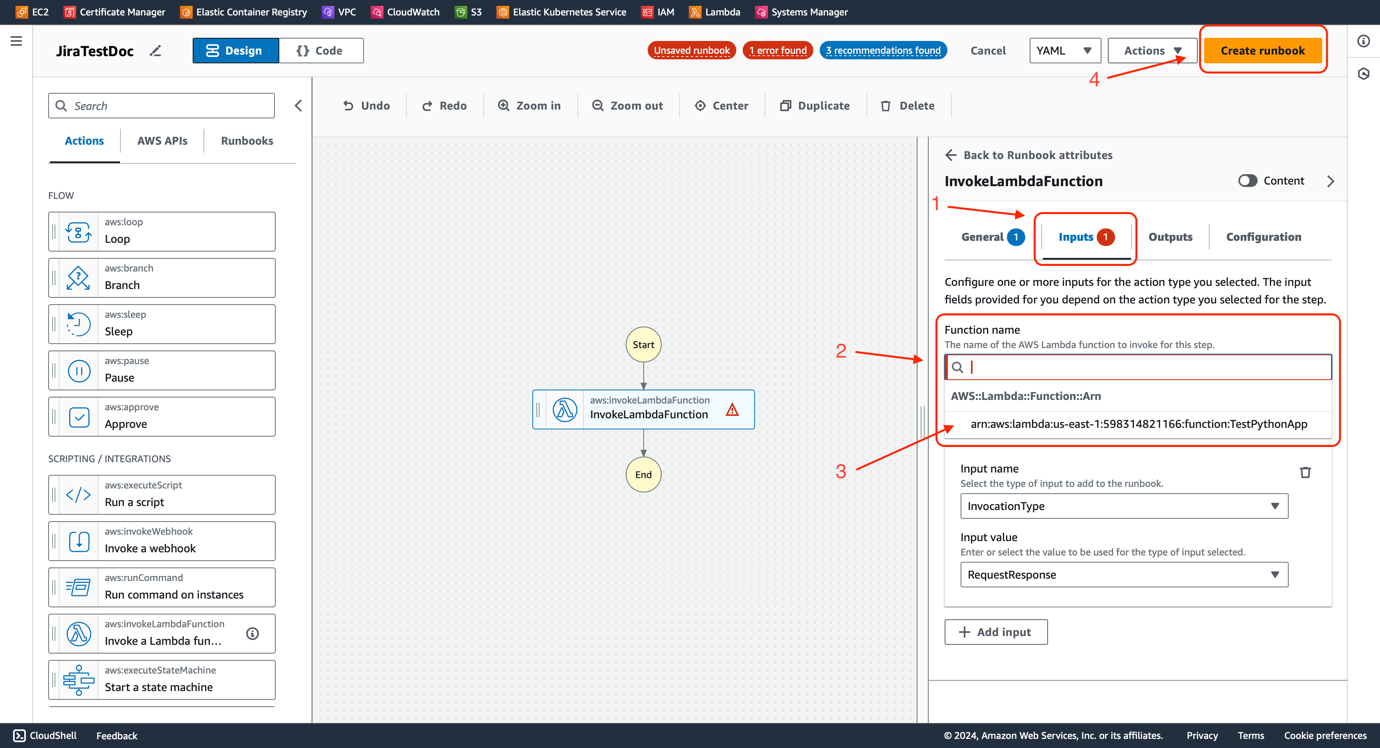
7. Choose **Inputs** from the tab in the menu.
8. Open the **Function name** pull-down menu.
9. Select the Lambda Function **TestPythonApp** we created in the previous section.
10. Click **Create runbook** button.
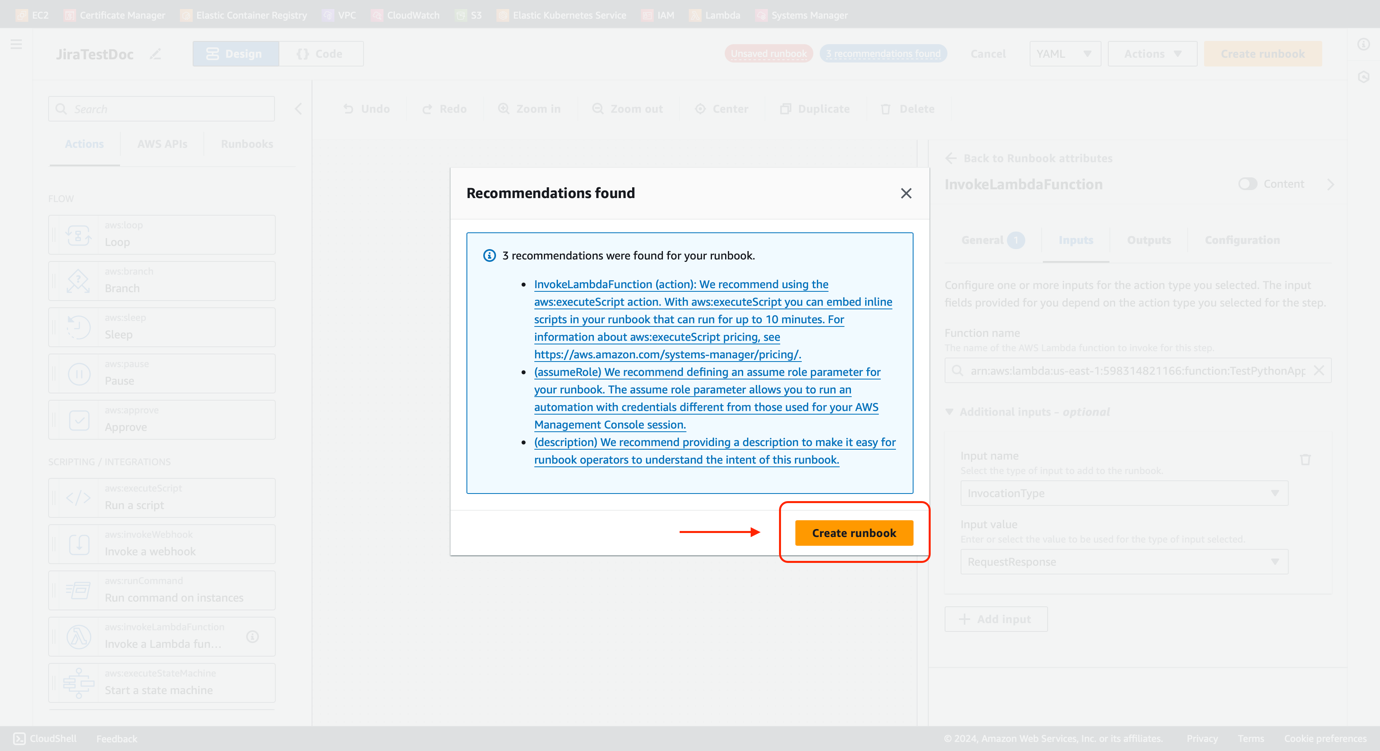
11. Ignore the recommendation window. Click **Create runbook** button.
Figure 27 - Jira Automation AWS SSM | AWS Systems Manager - Function SpecificationFigure 28 - Jira Automation AWS SSM | AWS Systems Manager - Create Runbook
Now you have got an SSM Automation Document.
Figure 29 - Jira Automation AWS SSM | AWS Systems Manager - Deploying Automation
## **Preparation on Jira**
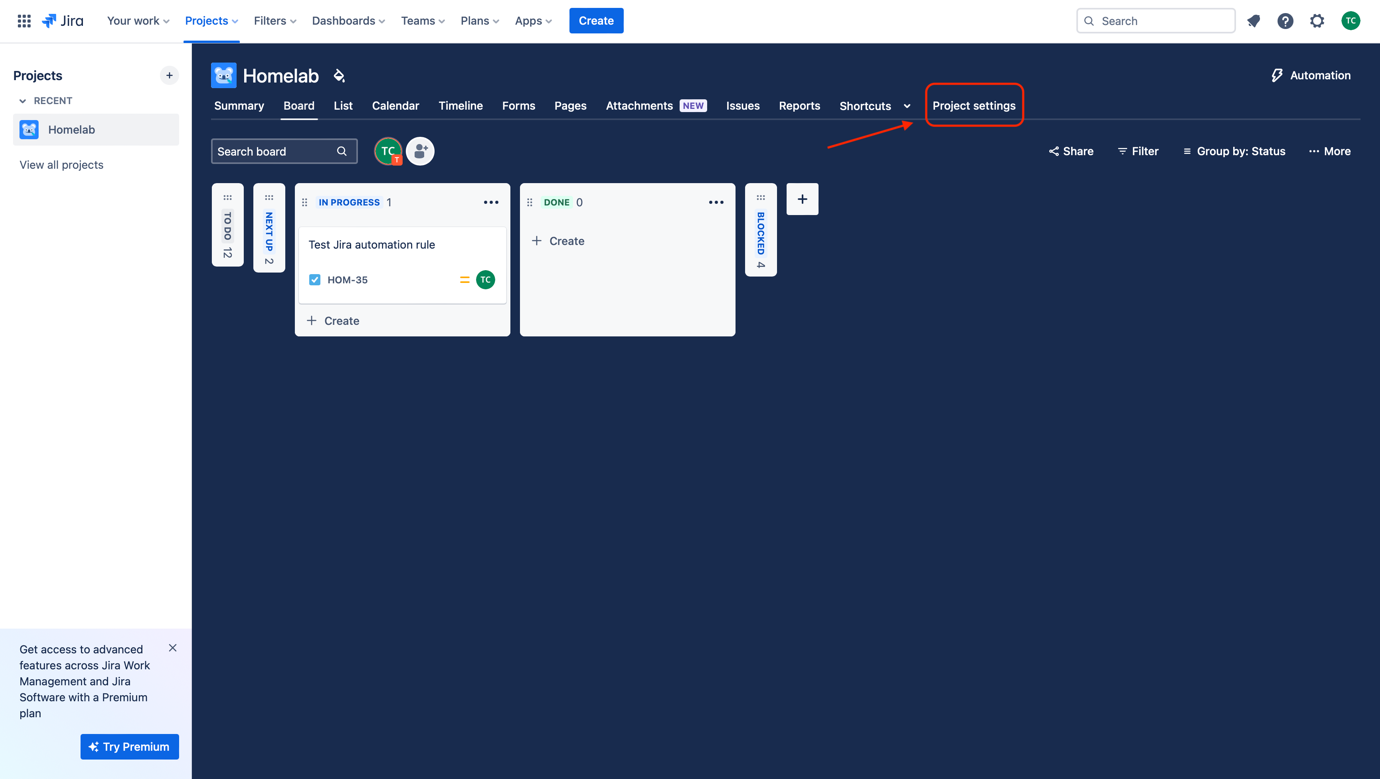
After we have prepared all the necessary resources on AWS, the final step is to create a Jira automation rule to trigger the execution of the SSM document. Then, we trigger the rule by transitioning an issue status from In Progress to Done.
1. Go to your Jira project Kanban board.
2. Choose **Project settings** from the tab.
Figure 30 - Jira Automation AWS SSM | Jira Project Settings
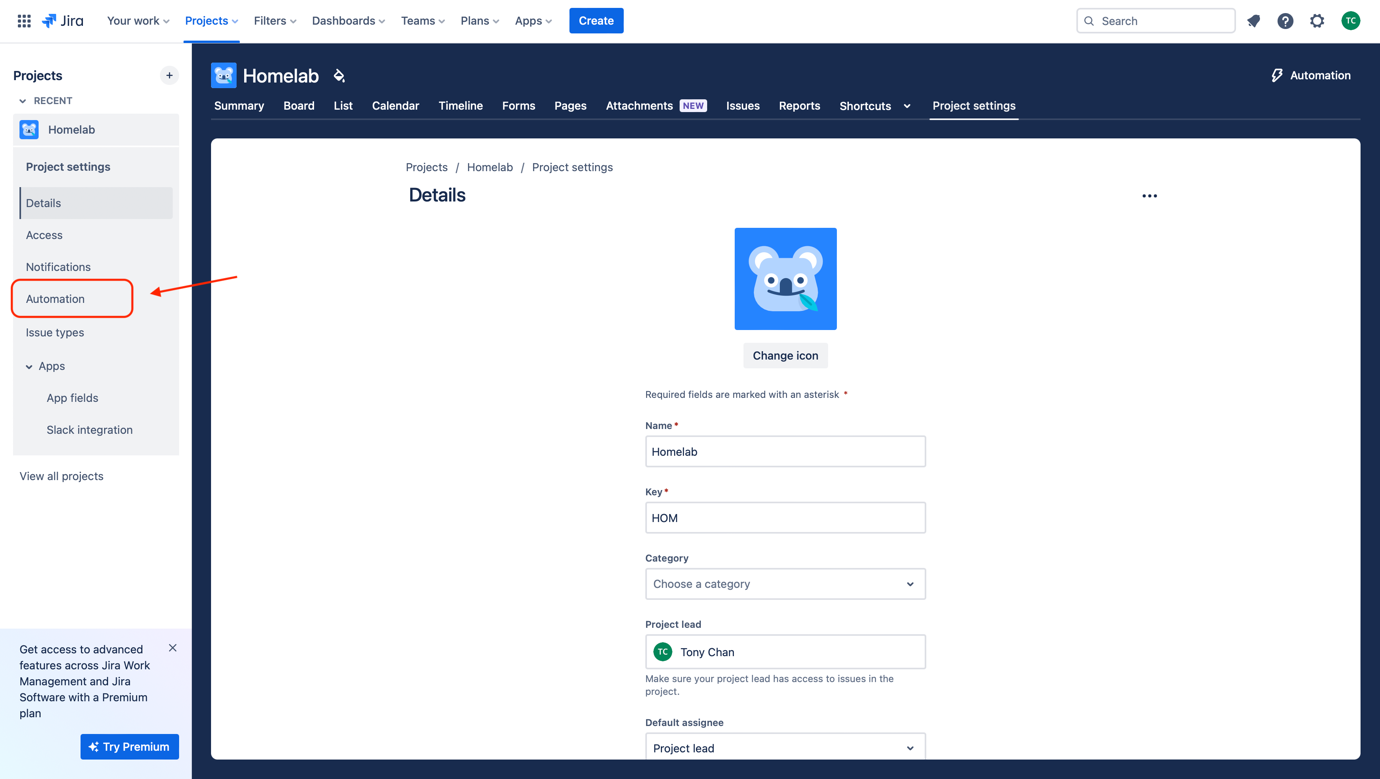
3. Select **Automation** from the navigation menu.
Figure 31 - Jira Automation AWS SSM | Jira Project Settings
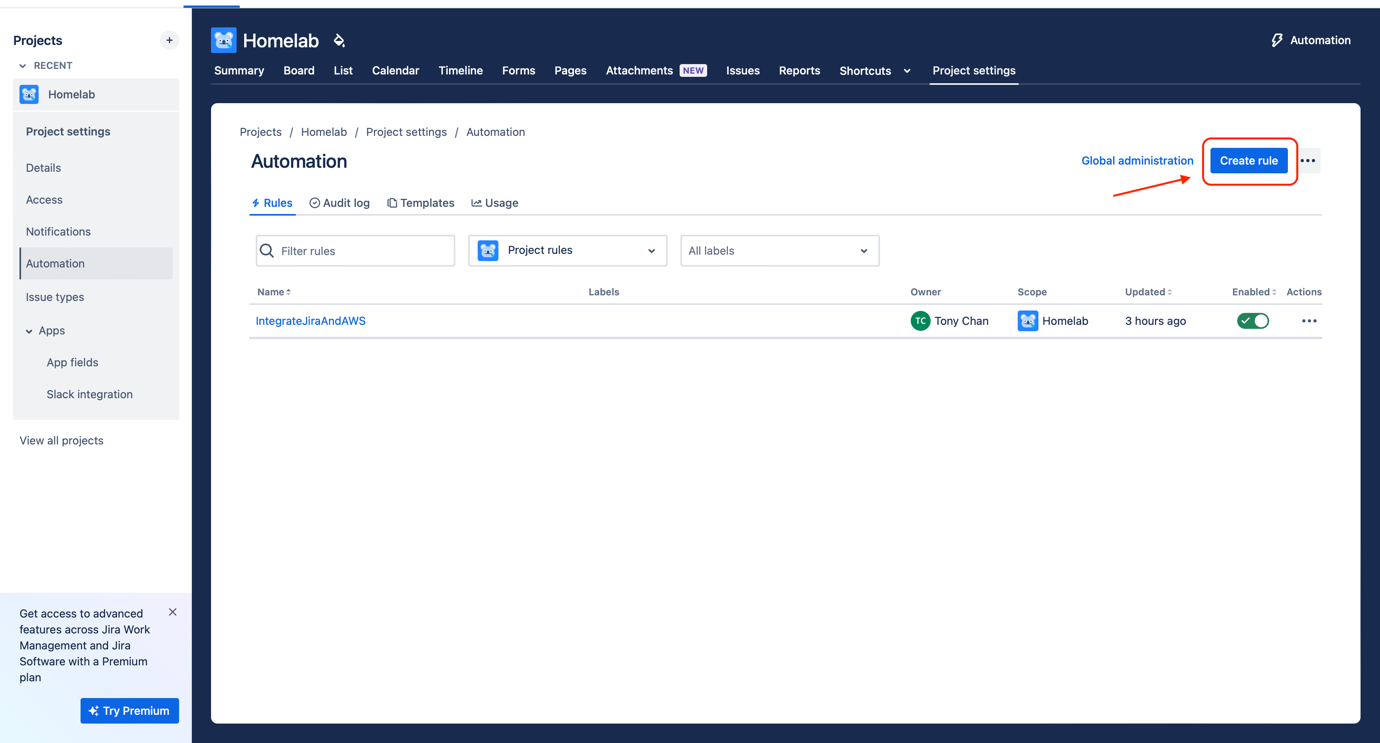
4. Click the **Create rule** button.
Figure 32 - Jira Automation AWS SSM | Jira Automation Rules
5. You will see a Rule Builder panel.
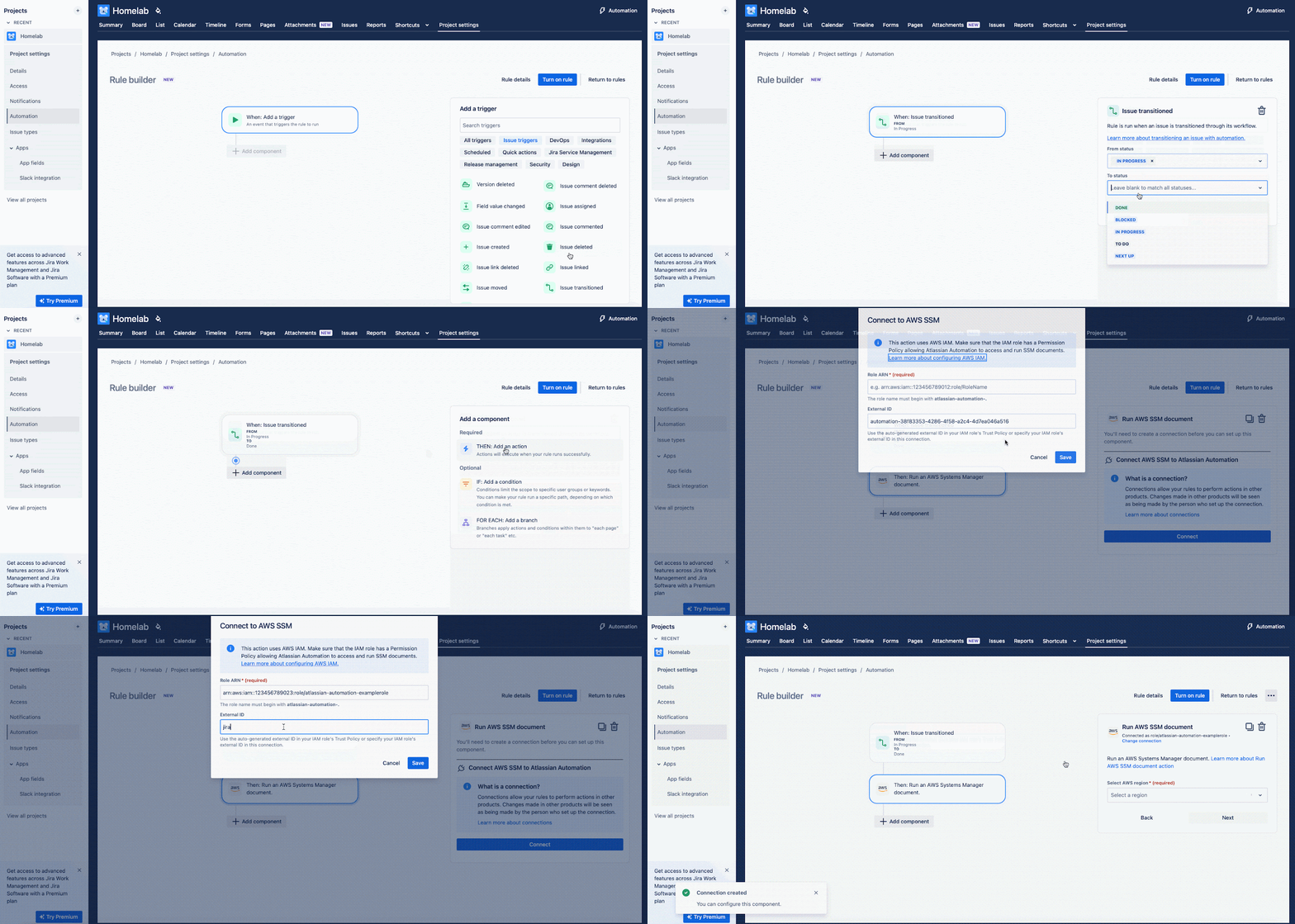
6. Choose **Issue Transitioned** as the trigger, from status **IN PROGRESS** to status **DONE**.
7. Click **Next**.
8. Choose **THEN: Add an action**.
9. Select **Run AWS SSM document**.
10. Click **Connect**.
11. Enter the ARN of the IAM Role we have created previously. You can find it from the AWS Console.
12. Enter the External ID we have configured during IAM role creation. We have chosen **jiraautomation** as our example.
13. Click **Save** and you can see a configuration panel on the right.
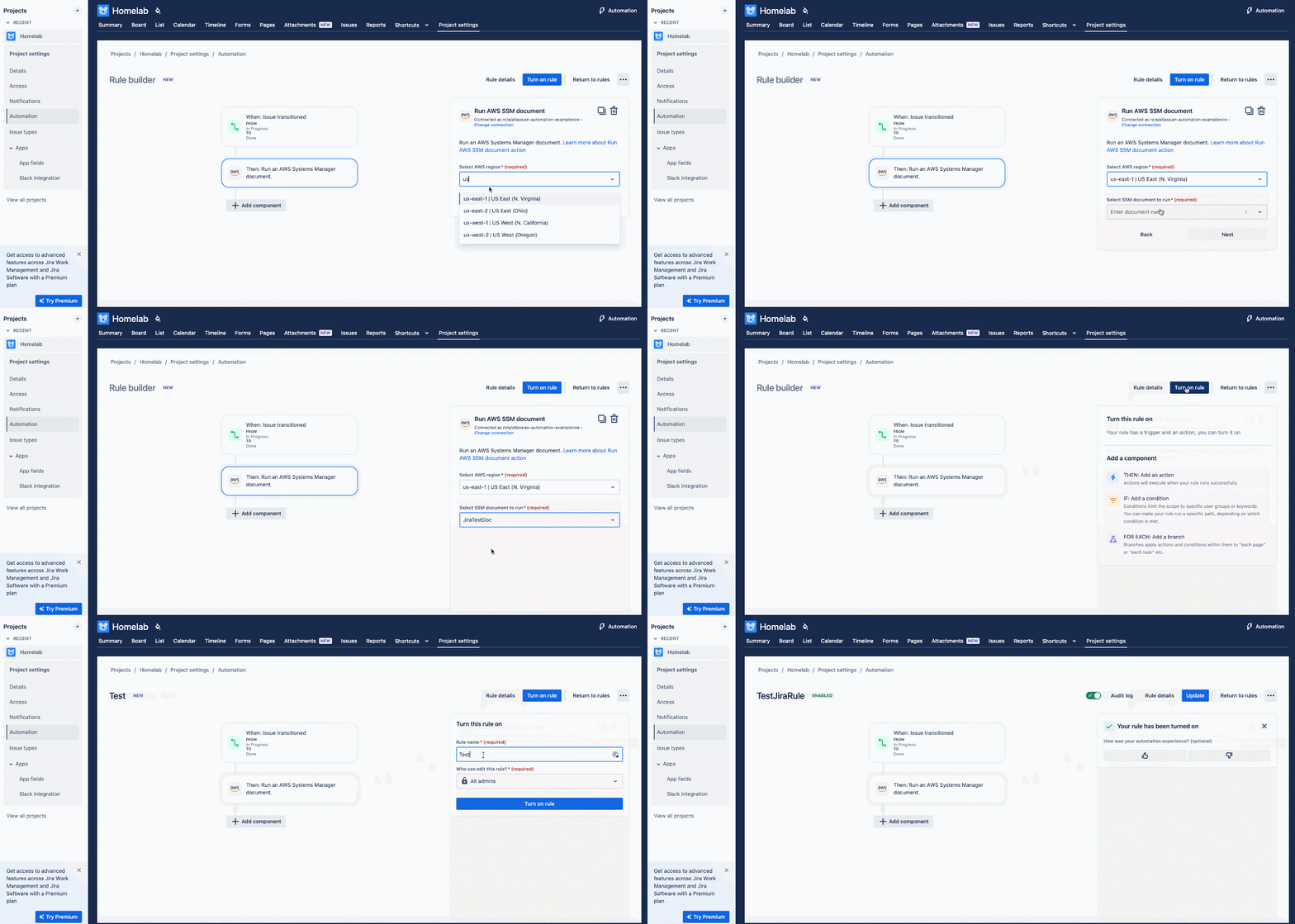
14. Select the correct AWS region. We use **us-east-1** as an example.
15. Select the SSM document we have created previously. We use **JiraTestDoc** as an example.
16. Click **Next**.
17. Click the **Turn on rule** and give the name of this rule. We use **TestJiraRule** as an example.
18. Click the **Turn on rule** again.
Figure 33 - Jira Automation AWS SSM | Jira Automation RulesFigure 33 - Jira Automation AWS SSM | Jira Automation Rules
We have prepared everything necessary. You can also create an issue for testing or use any existing issue in your project board.
## **Result**
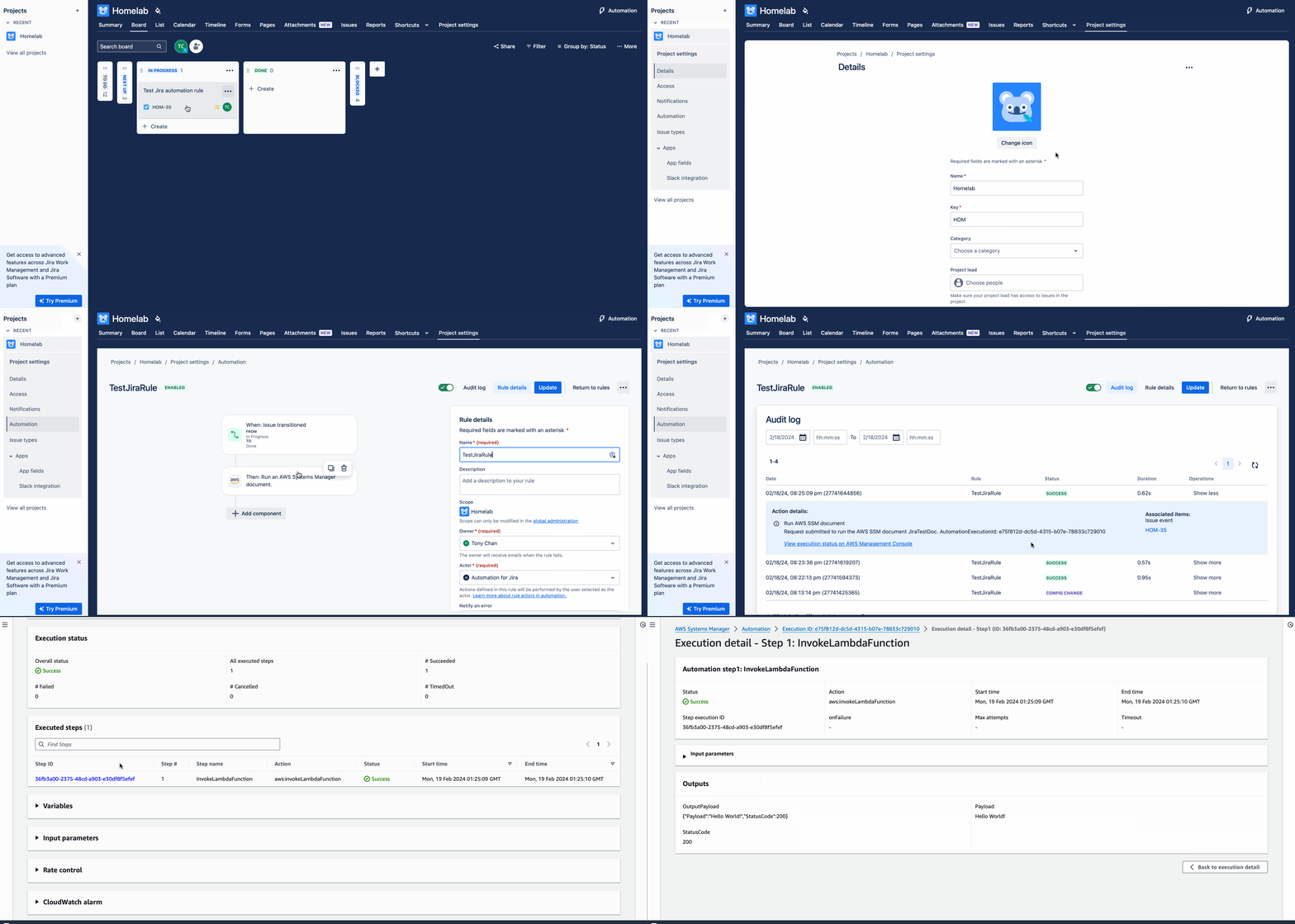
We can perform end-to-end testing that triggers the automation rule by transitioning the issue, then check the execution result from the audit log and AWS Console.
1. Transit the testing issue from **In Progress** to **Done**.
2. Go back to the Rule Builder panel and click the **Audit log** button.
3. Check the latest execution if it has a **success** status.
4. Expand the details and click **View execution status on AWS Management Console**
5. Check on AWS Console if the execution outputs a “Hello World!” message.
Figure 34 - Jira Automation AWS SSM | Jira Automation
## **DevOps Use Cases**
As mentioned at the start of this article, Jira is a project management tool widely used in the IT industry as a centralized platform for teams to organize different stages of their work. Therefore, Jira automation plays a critical role in completing fully automated workflows.
For the last part of this article, there is a list of DevOps use cases that you can use to utilize Jira automation, and for sure, there are some useful cases on when we need to integrate AWS SSM to cover its weaknesses.
Typical use cases with Jira Automation
- Create a branch on GitHub repositories when an issue has been created.
- Notify the QA team members on Slack when an issue has been transitioned to QA status.
- Comment on an issue when it has passed each stage.
- Assign the issue to the specific team when it has reached a specific stage.
More use cases with AWS SSM,
- Authenticate to GitHub Rest API using Lambda Function and trigger a GitHub Actions workflow when an issue has transitioned.
- Create an AWS Elastic Beanstalk environment while deploying a bugfix branch linked to an issue.
- Trigger AWS CodeBuild for CI when there is a new commit against the feature branch linked to a feature ticket.
The above use cases are popular and useful in reducing daily manual tasks. Automating those tasks is also the responsibility of a DevOps Engineer. By using Jira automation with AWS SSM, you can create tons of possibilities that help your job.